¶ Introduction
CloudSURVEY is a cloud-based management portal that is designed for use with Siretta’s SNYPER and SENTRY cellular network analyser products. SENTRY surveying is controlled from the CloudSURVEY portal (as it has no local interface) and SENTRY automatically uploads any surveys that it conducts to CloudSURVEY. Whereas with SNYPER, users can choose to upload their surveys to CloudSURVEY while viewing the survey file on a PC.
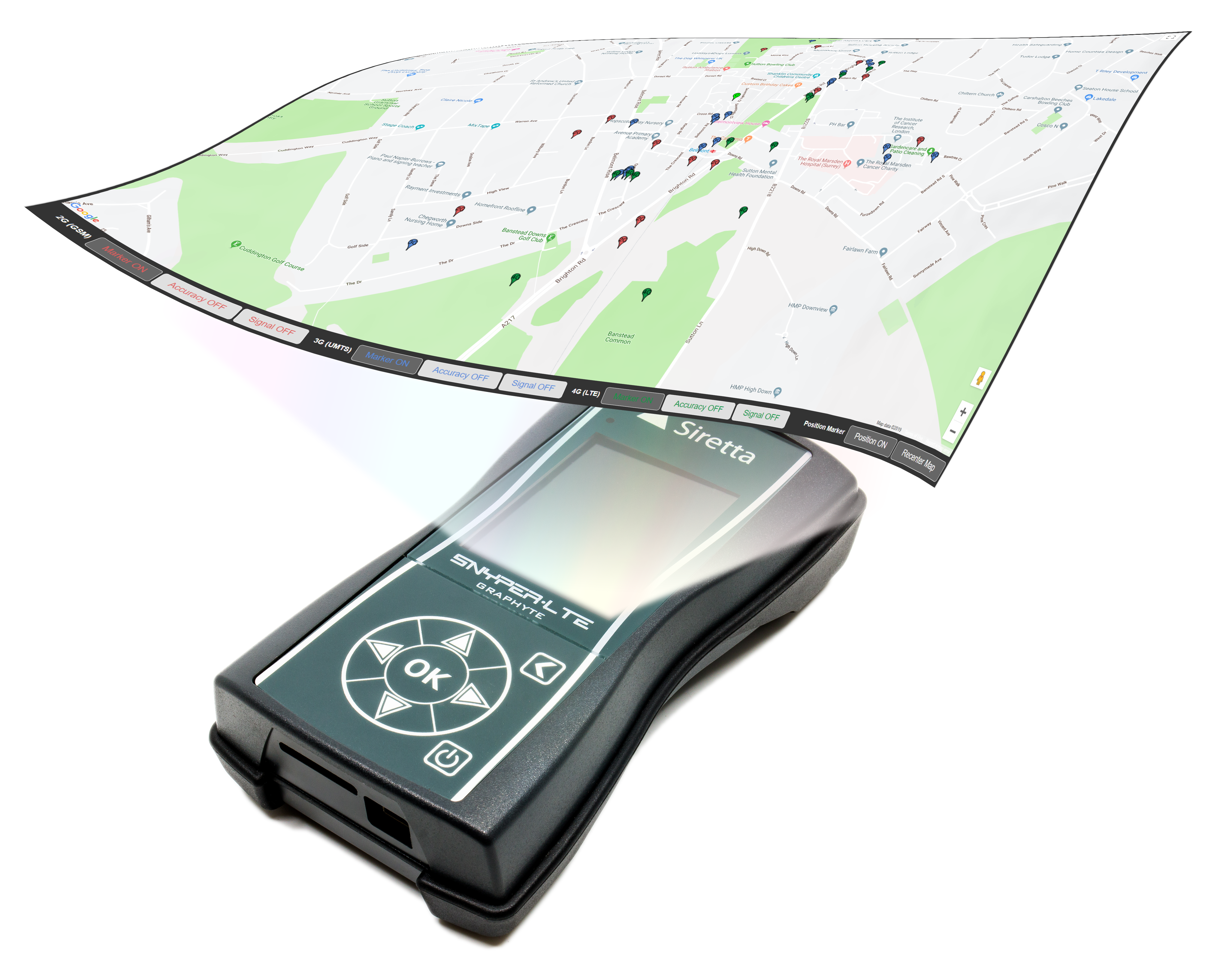
Utilising CloudSURVEY with a SNYPER provides certain benefits. Firstly, users can gain more detailed information about the conducted surveys. This includes, but is not limited to, insights into network dominance, survey mapping and keyword searching. Network dominance ranks networks based not only on the number of cells discovered, but their signal strength. Survey mapping shows the location of discovered cells by marking them on an interactive map. This allows users to visualise the cellular environment and apply visual overlays. Lastly, with all surveys safely stored in CloudSURVEY, surveys can be searched for, using keywords such as the location, and compared with other saved surveys. For instance, if a site has been surveyed in the past it could be compared with a recent survey to see how the cellular networks discovered may have evolved over time.
The SENTRY utilises a SIM card to connect to the cellular network. This enables it to post surveys to CloudSURVEY seamlessly and access the same benefits available to SNYPERs. Users configure SENTRY survey requirements and initiate or terminate surveys through CloudSURVEY. Surveys are automatically uploaded to CloudSURVEY as they are conducted.
An account holder of either a SENTRY or SNYPER may enable the sharing feature. Once sharing is enabled, the shared accounts can view all surveys stored on the sharer account, allowing for easy collaboration within a team or organisation.
Creating and uploading surveys to CloudSURVEY is free of charge. However, placing cell site markers on maps requires CloudSURVEY processing and hosted mapping resources. Users can purchase tokens via the CloudSURVEY portal, which are consumed when map data is generated and updated.
¶ Common Features
-
Displays the location of discovered cells on a map (see note below).
-
Stores cellular network surveys into secure cloud storage.
-
Supports up to 100 SNYPERs and SENTRYs on one account.
-
Add comments and bookmarks to surveys.
-
Filter view to show specific networks.
-
Limit view to a specific country and/or cell technology.
-
Show heat density of cellular coverage.
-
Powerful search tool that allows for searching of keywords in the location and comments across all surveys from all devices on the CloudSURVEY account.
-
Compare surveys.
-
Share surveys between CloudSURVEY accounts.
¶ SNYPER Compatible Models
- SNYPER-LTE Graphyte (EU)
- SNYPER-LTE Graphyte (USA)
- SNYPER-LTE Graphyte (EU) V2
- SNYPER-LTE Graphyte (USA) V2
- SNYPER-LTE Graphyte (AP) V2
- SNYPER-LTE+ (EU)
- SNYPER-LTE+ (EU) V2
- SNYPER-LTE+ (USA)
- SNYPER-LTE+ (USA) V2
- SNYPER-LTE+ Spectrum (EU)
-
SNYPER-LTE+ Spectrum (EU) V2
-
SNYPER-LTE+ Spectrum (AP) V2
-
SNYPER-LTEM (GL)
-
SNYPER-5G Graphyte (GL)
-
SNYPER-IoT Graphyte (GL)
¶ SENTRY Compatible Models
- SENTRY-G-LTE4 (EU)
- SENTRY-G-LTE4 (USA)
Cell mapping uses a Google API. Google collects information from Google Maps users about where they are and to which cell they are connected. This in turn is used to estimate the position of the cell used and stored in a database. The Google API uses this database to map discovered cells.
The advantages of this are that newly deployed cells are quickly discovered and added to Google’s database, and that the mapping system will work worldwide. The disadvantage is that the database can only map cells that a phone has registered with. For GSM, UMTS, LTE and 5G NR cells this is not a problem.
For NB-IoT and LTE-M, cell mapping is best effort and comes with no guarantees as a phone would not normally connect to these types of cell. However, often LTE-M cells are shared with LTE cells and can be indirectly found because of the sharing, but this is highly dependent on how the cell has been configured by the operator. In practice, CloudSURVEY is able to map many LTE-M cells but this capability will vary between networks and countries. Expectations that an NB-IoT cell will be mapped are very low.
¶ Getting Started
¶ Accessing CloudSURVEY
Access the CloudSURVEY portal at www.cloud-survey.co.uk. Siretta uses a unified login procedure to access some areas of Siretta’s websites:
https://portal.siretta.com/
https://www.siretta-link.com/
https://www.cloud-survey.co.uk/
An account created for one of these websites will also work on the other websites. Account logins are a combination of the user’s email address as a username, and a password. If using a password manager, it is suggested that Siretta’s websites be set as equivalent domains for best management of login details.
-
Use a web browser and enter https://www.cloud-survey.co.uk/ to go to the CloudSURVEY website. From here, you'll need to either log in or register for a new account.
-
If you already have an account, enter your Username and Password and click ‘Login’. Otherwise, click ‘Register’ to create an account to use with CloudSURVEY (and the other Siretta websites). In this case, you will be redirected to https://portal.siretta.com/ where the account registration form is presented.
-
Complete the required fields, accept the privacy policy and click ‘Register’. Within a few minutes, an email from portal@siretta.com will arrive with a link to confirm the email address and complete registration. If it doesn't arrive, check the Junk folder and add portal@siretta.com to the safe senders list.
-
On first login to the CloudSURVEY portal, the system will send a welcome email to the you containing a brief overview of CloudSURVEY.
-
Configuring a SENTRY for the first time with SirettaSPARK will automatically link it to the portal, and it will be displayed in the Device List in CloudSURVEY.
It may take up to 5 minutes for the SENTRY to display online because it communicates with the server once every 5 minutes while awaiting instruction.
¶ Setting the Interface Language
- Set the preferred interface language using the 'Select Language' drop-down menu highlighted below:

- Language support is provided by Google Translate and offers over 130 languages from which to choose.
¶ Tokens
Tokens are a form of credit in CloudSURVEY. They are used with cell mapping and are consumed when a map is initially created or its view is refreshed to redraw the positions of found cells. One token is used to draw the map, and an additional token is used for each cell plotted on the map.
SENTRY surveys are real-time events; thus, tokens are used as cells are discovered, unlike SNYPER surveys which are uploaded after the event. Viewing a previously created map without refreshing the cell locations also consumes one token.
- The first 500 Tokens are granted free of charge. From the landing page, click the ‘Request 500 Tokens’ button.

-
This sends a request to sales@siretta.com to add 500 tokens to the user’s account. Normally this request will be actioned within 1 working day, UK weekends and holidays excepted. A confirmation email from portal@siretta.com will confirm the addition of the tokens. Note that the granting of tokens is a manual process and subject to use of service checks. Once requested, the button will no longer be available.
-
Once granted, a token count can be seen to the right of the user icon.

- Once the initial 500 tokens provided with the account have been used, additional tokens can be purchased. Click on the user icon next to the remaining token count to access the token store.
Tokens are only required to use the mapping functionality of CloudSURVEY. CloudSURVEY will always allow surveys to be stored and viewed, even when there are no remaining tokens on the account. Tokens are not required to be able to control and use SENTRY.
¶ Using SENTRY with CloudSURVEY
SENTRY is a cellular surveying tool that integrates with CloudSURVEY in two ways:
- CloudSURVEY is used for setup and control of surveying. This can be either with a web browser, Android app (from Google Play Store) or iOS app (from Apple App Store). As surveys are completed, the results are uploaded directly to CloudSURVEY via the cellular network.
- CloudSURVEY is used for viewing the surveys uploaded by SENTRY.
¶ Configuring SENTRY using SirettaSPARK
-
Once logged onto the Siretta portal, navigate to Resources > SirettaSPARK Tool or navigate there directly using this link: https://portal.siretta.com/portal_siretta_spark.php.
-
Download and run the SirettaSPARK application. You need to register SirettaSPARK to the account you created. Refer to the SirettaSPARK User Manual for details on how to use SirettaSPARK.
-
In the SPARK tool, click Connect device then click Configuration and enter the APN and any username/password/PIN required by the SIM card provider, and save them to the SENTRY.
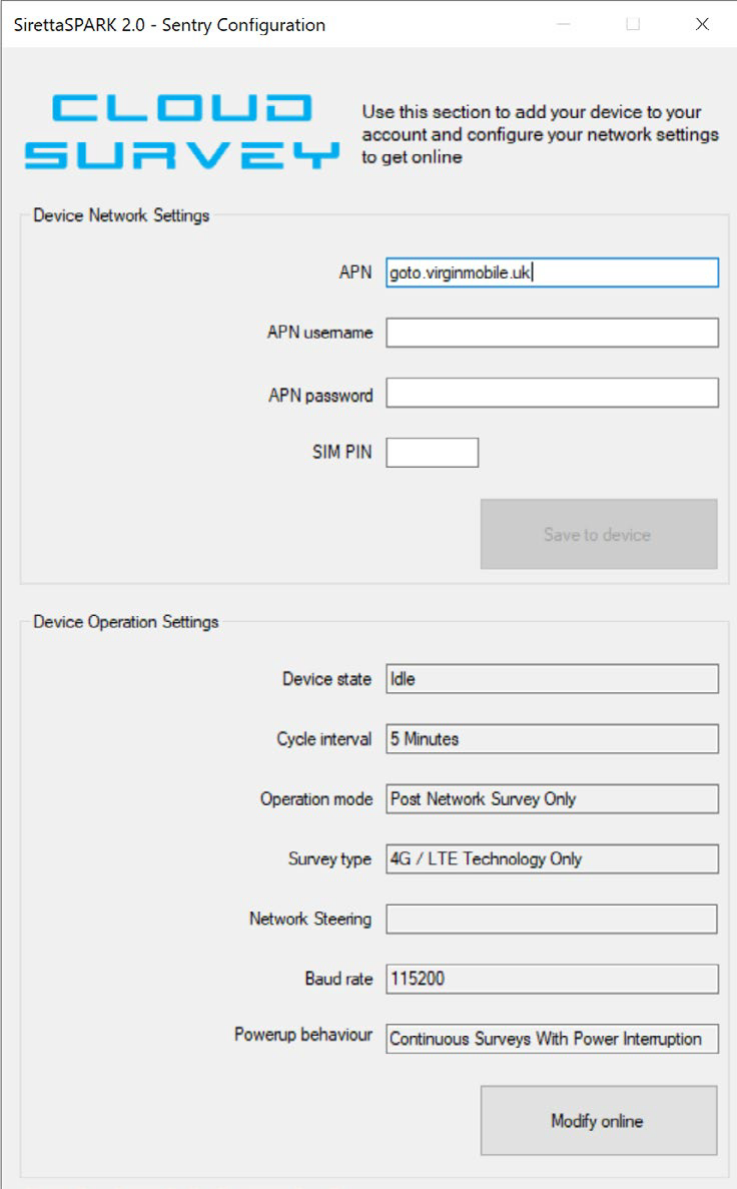
- Once the SENTRY has been configured, the SirettaSPARK application associates the serial number of the configured SENTRY to your CloudSURVEY account so that it is automatically displayed on your CloudSURVEY account.
The account to which a SENTRY is initially paired is considered the owner of the SENTRY on CloudSURVEY.
- With network settings now configured in the SENTRY, turn off/remove the power and unplug the USB cable. Then re-apply power. The SENTRY will then connect to the cellular network. On first boot after the SIM settings have been applied, this will take several minutes. When the green and blue LEDs are continuously lit, and the red LED is blinking slowly, the SENTRY is online and ready for use.
¶ Using SNYPER with CloudSURVEY
To use a SNYPER with CloudSURVEY, it must be configured to produce an HTML report for each survey, which is the default factory configuration.
This is not applicable to both 5G-Graphyte and IoT-Graphyte SNYPER models. This setting can be found from the Main Menu of the SNYPER by navigating to Setup > Documents and checking that HTML is set to ON.
¶ Ownership Overview
Every device (i.e. SNYPER or SENTRY) used with CloudSURVEY is judged to be owned by a single user. The owner of a device has full rights to the device and may grant permissions to other CloudSURVEY users to view surveys, and in the case of SENTRY to conduct new network surveys. Rights granted by the owner to other users may be removed at any time by either party. Ownership may also be transferred from one owner to another.
A device owner may always see which of their devices are shared, and with whom. Similarly, a user who has been granted permissions can always see which devices they have been granted permissions to view, and who the owners are.
¶ Surveying
¶ Overview
CloudSURVEY is used to control the start, duration, and survey conditions of SENTRY cellular network surveys. CloudSURVEY is essential for the operation of a SENTRY and viewing the surveys it produces. In contrast, SNYPERs operate as a standalone product, conducting surveys independently of CloudSURVEY. CloudSURVEY enhances the SNYPER by offering additional features such as cloud storage, management, and mapping tools.
¶ Surveying with SNYPER
For SNYPER models: LTE, LTE+, LTE Graphyte, LTE-M, ensure the HTML document setting is turned on (default).
Connect the SNYPER to an internet-enabled PC then open and view the HTML survey file in a web browser. Refer to the SNYPER User Manual corresponding to your specific model for details on how to create a survey and view the resultant HTML file (click here for Siretta’s document library).
Scroll to the end of the survey page. Find and click on ‘Store Survey Results in CloudSURVEY’.

You will be redirected to the CloudSURVEY portal login. Once signed in, the survey will be displayed and automatically stored. If this is the first time accessing a survey on the SNYPER in CloudSURVEY, the signed-in account will become the owner of the device.
Clicking the link at the bottom of the HTML survey file will always show the survey in CloudSURVEY. However, it will only be saved to the account if the viewer of the survey is either the owner of the SNYPER or has permission to view surveys from that SNYPER.
¶ Surveying with SENTRY
Cellular network surveys using SENTRY are set up and initiated either from the CloudSURVEY portal or by using the CloudSURVEY mobile app, available on both Android and iOS.
¶ Using CloudSURVEY to Initiate Surveys
In the CloudSURVEY portal, all online SENTRYs are displayed in the Device List. Each SENTRY can be identified by its 6-digit device ID, which corresponds to the last 6 digits of the serial number printed on the product label.
After the LEDs indicate that the SENTRY is online, it may take up to 5 minutes to appear in the device list. The controls used to perform a survey with the SENTRY are highlighted below.
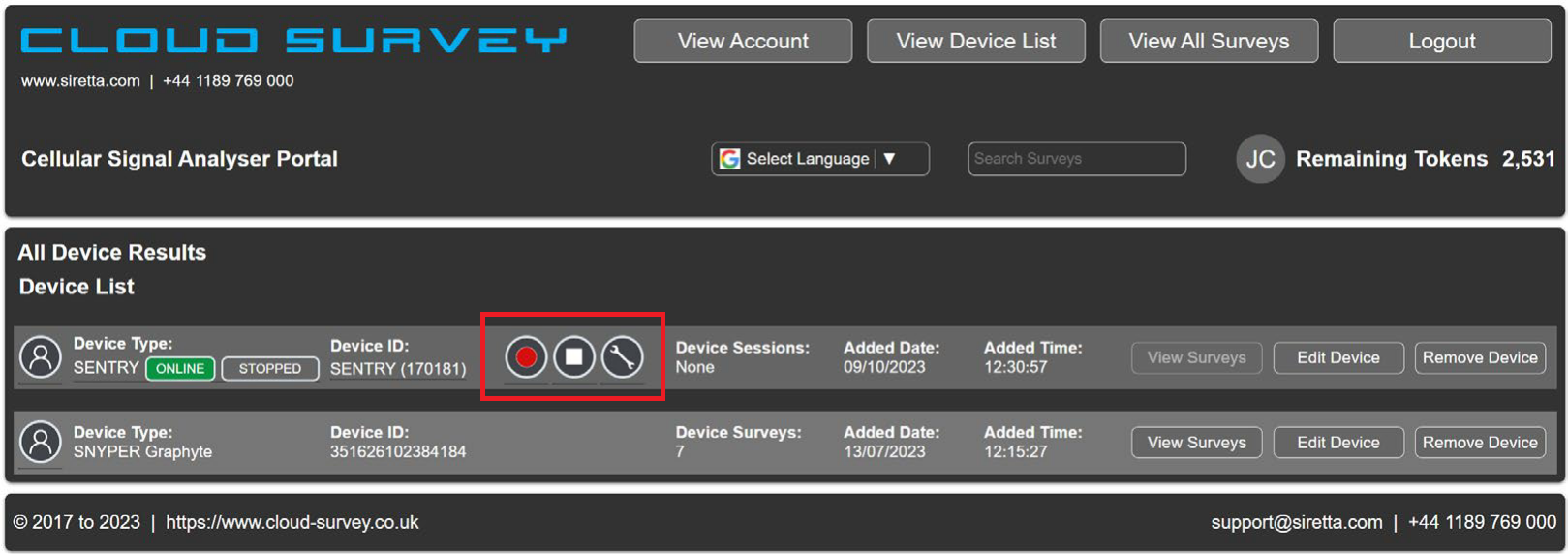
If an account has more than one SENTRY assigned, each unit will have its own independent controls.
If a SENTRY has previously conducted an initial survey, an additonal button will be displayed for viewing a list of all previous surveys and any that are currently in progress:
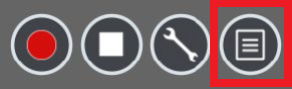
Hovering the cursor over any of the buttons will display a pop-up window with additional information. This is particularly useful when the SENTRY is surveying if the session start/resume button is hovered over as it shows the running and remaining time:

¶ Buttons for operating SENTRY surveys
| Button | Feature | Description |
|---|---|---|

|
Session Start | Click to start a survey with the current configuration. CloudSURVEY synchronises with the SENTRY. |

|
Wait for SENTRY synchronisation | Synchronisation information message. CloudSURVEY moves to surveying when synchronisation is complete. |

|
Session Pause | Surveying is in progress. Click to pause the active survey session. |

|
Session Stop | Click to stop an ongoing survey. |

|
Configuration | Click to edit and save the SENTRY survey configuration settings (see Sentry Configuration). |

|
Survey History | Click to see a list of all conducted surveys (see Sentry Survey History). This button is available after a survey has been completed. |
¶ Survey Procedure
-
Click the Configuration button and set the survey parameters (see SENTRY Configuration).
-
Click the Session Start button to start surveying.
-
If and as necessary, click the Pause/resume button.
-
If necessary, click the Session Stop button.
-
Surveying concludes when either the configured end conditions are met or the stop button is pressed, whichever occurs first.
-
View the survey (see Viewing all Survey Results).
¶ SENTRY Configuration
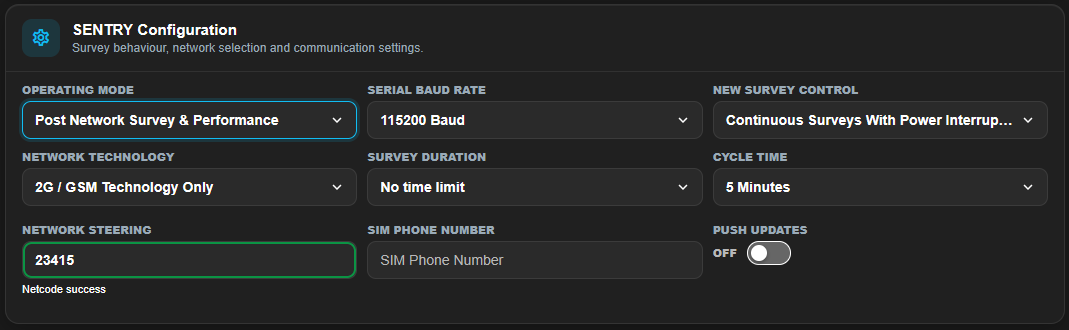
The SENTRY should be configured before first use. This ensures it is set up for the correct survey type and duration. The configuration page and meaning of the fields are explained below.
The configuration settings may not be updated while a survey is in progress. Any changes made during an active survey will terminate it and initiate a new one with the updated configurations.
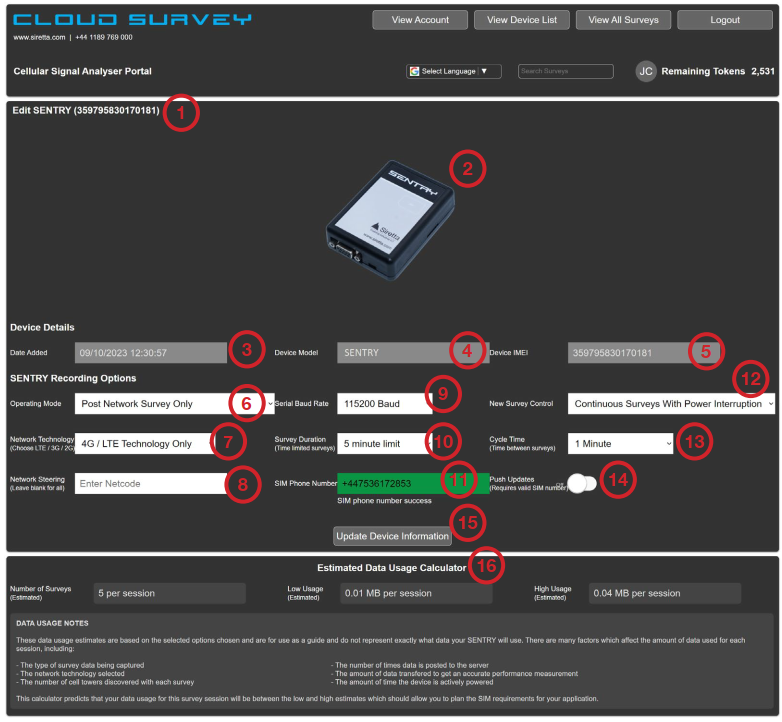
- Siretta product name and serial number (read-only field)
- Product image.
- Date added to the account (read-only field).
- Device model (read-only field).
- Device IMEI number (read-only field).
- Operating Mode:
- Post Network Survey Only – This identifies all the cells around the SENTRY, their received signal strength and other cell characteristics such as network operator, band, Cell ID, etc.
- Post Network Survey & Performance – In addition to identifying all nearby cells, the SENTRY will execute a performance survey on the network to which it is registered. This measures the upload/download speed, registration time and latency of the connected cell. Set Network Steering to force the survey to test a specific network (see step 8).
- Local Network Survey only (RS232 Serial) – This performs a Network Survey; however, instead of posting the results to CloudSURVEY, they are saved in a CSV file and sent to the RS232 port on the SENTRY.
- Survey technology:
- 2G/GSM Technology Only
- 3G/UMTS Technology Only
- 4G/LTE Technology Only
- Network Steering: An optional setting used exclusively for Network Performance surveys. Enter the PLMN (a combination of the MCC and MNC) of the network to test. The SENTRY will attempt to register with the specified network and performance test the the cell to which it connects. This should only be used with a roaming SIM. If a network is specified that the SENTRY is unable to register to, then the performance part of the survey will be skipped.
The name of the network provider can be entered to initiate a searchable drop-down menu which is filtered by the values entered. For example, enter 'vodafone' and the list shows all global Vodafone PLMN identifiers from which to select.
-
Serial Baud Rate: specifies the baud rate to be used on the serial port. Data is always 8-bit, 1 stop bit, no parity.
Select from the following options:- 9600 Baud
- 115200 Baud
-
Survey Duration: Determines the total duration of the survey. The survey duration counter starts when the first network scan is posted to CloudSURVEY. So if the SENTRY is not powered, the timer doesn’t start until the SENTRY has powered up and sent the first scan data back to CloudSURVEY. Any scans in progress when the timer expires will be completed, resulting in the survey duration reported by CloudSURVEY being slightly longer than the requested time.
Select from the following options:- No time limit
- 5 minute limit
- 30 minute limit
- 1 hour limit
- 2 hour limit
- 3 hour limit
- 4 hour limit
- 6 hour limit
- 12 hour limit
- 24 hour limit
- 2 day limit
- 3 day limit
- 4 day limit
- 5 day limit
- 1 week limit
- 2 week limit
-
SIM Phone number: Enter the phone number of the SIM card used in international calling format (i.e. with a leading ‘+’ and country dialling code). This may be used to improve the responsiveness of the SENTRY surveying by allowing CloudSURVEY to send text messages to the SENTRY with instructions rather than waiting for the SENTRY to contact CloudSURVEY.
-
New Survey Control: Controls how surveying behaves in the event of a power interruption.
Select from the following options:- Continuous Surveys With Power Interruption – Upon recovery from a power failure, new cellular scans are added to the ongoing survey. The survey duration is not extended to account for the loss of scans during the power outage.
- Start New Survey With Each Powerup – CloudSURVEY detects a SENTRY power-up event, marks the survey that was in progress as complete, and initiates a new survey. Beginning a new survey in this way does not restart the survey duration counter e.g. If power fails 15 minutes into a one-hour survey and is returned 50 minutes into the survey, CloudSURVEY will have one survey of 15 minutes and one survey of 10 minutes data recorded.
-
Cycle Time: This is the time interval between the cellular network scans taken by the SENTRY. All network scans performed are collated into a single survey report. The survey report may be examined while surveying is in progress and will show the results of the scans already completed.
Select from the following options:- 1 Minute
- 5 Minutes
- 10 Minutes
- 15 Minutes
- 30 Minutes
- 45 Minutes
- 1 Hour
- 2 Hours
- 3 Hours
- 6 Hours
- 12 Hours
- 24 Hours
-
Push Updates: Enabling push updates allows CloudSURVEY to send SMS to the SENTRY thereby improving the response time of the SENTRY to commands issued by CloudSURVEY. For this to work correctly, the SIM card must be enabled to receive such SMS messages.
SIMs with International Network country code (+882 and +883) numbers can behave differently with respect to text messaging compared to normal SIMs and may not work with this setting, dependent on SIM provider.
- Update Device Information: Clicking this button saves any configuration changes made to the unit. Updating the configuration while a survey is in progress will terminate the executing survey while retaining all survey data already gathered during the survey.
- Estimated Data Usage Calculator: Displays the estimated data usage of the SENTRY with the settings shown for a survey with an average amount of discovered cells. Actual data usage could be higher or lower than the estimate depending on how many cells are discovered.
¶ SENTRY Survey History button
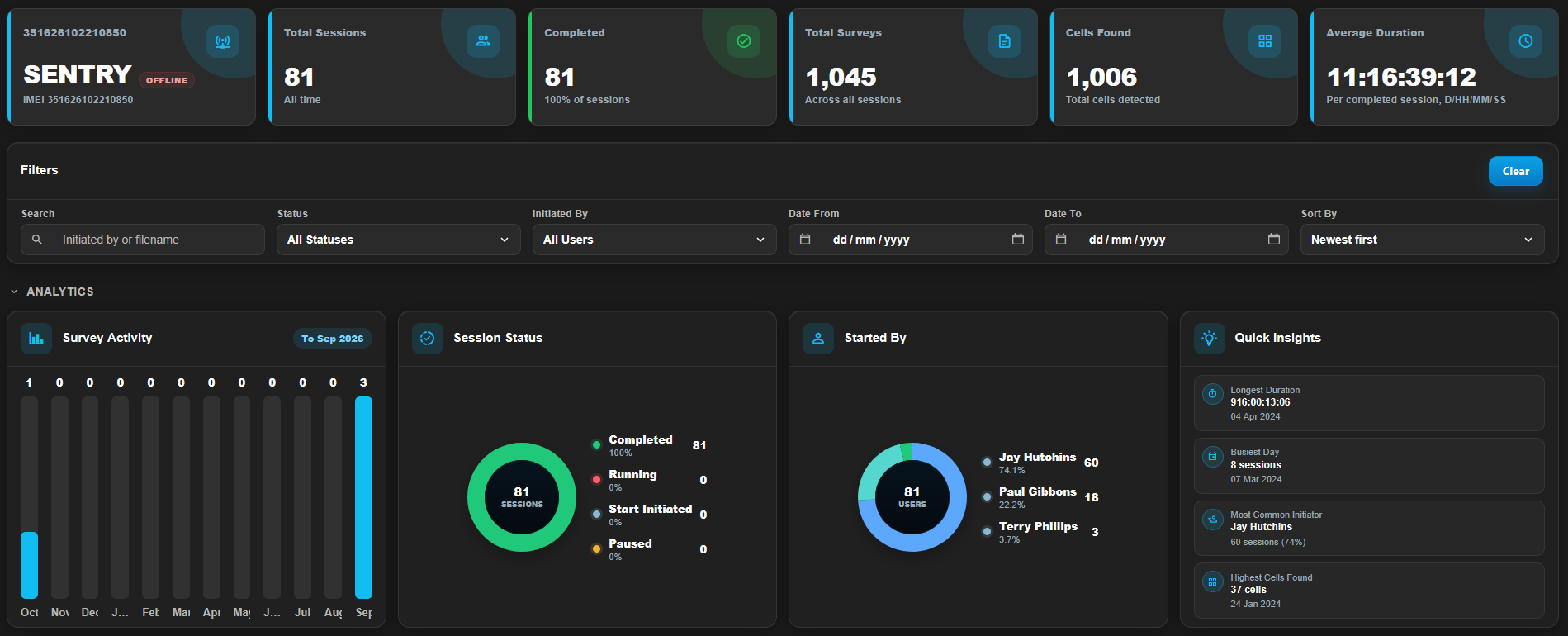
Clicking the Survey History button will display a list of all surveys initiated on this SENTRY. This includes any surveys that are currently in progress.
This differs from the ‘View All Surveys’ list because it provides the start and end times along with details on the user that initiated the survey.
¶ Using the mobile app to initiate surveys
Siretta has developed the CloudSURVEY mobile application as an alternative method to controlling a SENTRY. This app is available for both Android and iOS on the Play Store and App Store, respectively. Simply search for 'cloudsurvey' in the store.
The app connects to the CloudSURVEY portal using a mobile view, making it easier to use on devices with smaller displays.
- Log in using your CloudSURVEY account credentials when accessing the app for the first time. Once signed in, a list of all available devices will be displayed, along with options to view and edit personal account information.
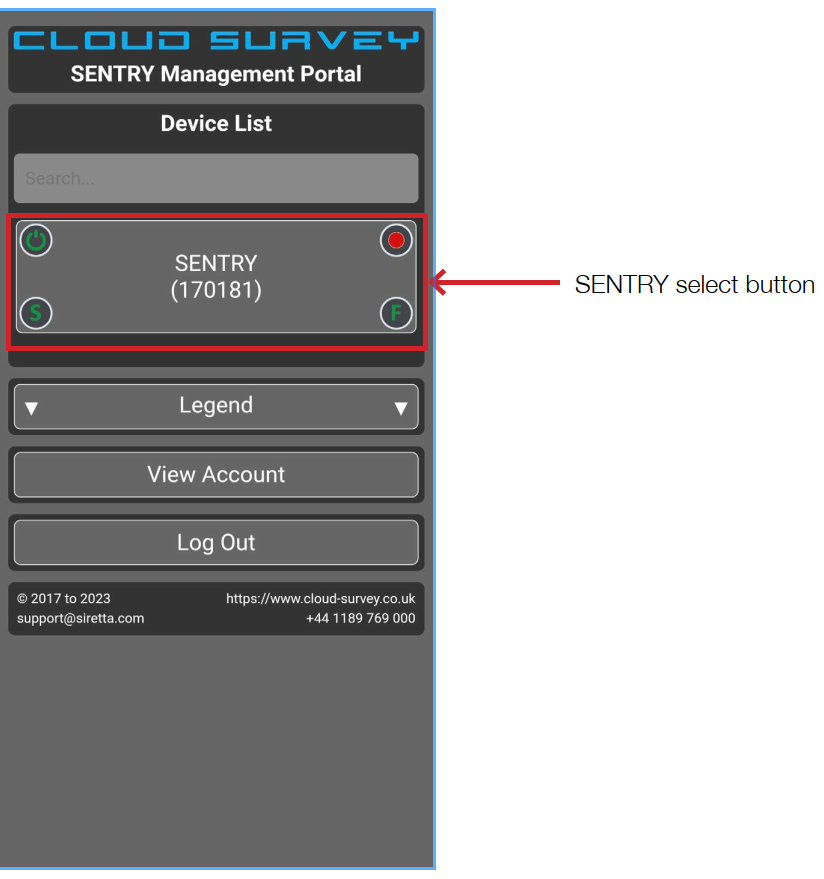
- Tap ‘Legend’ to reveal what each of the different icons mean.
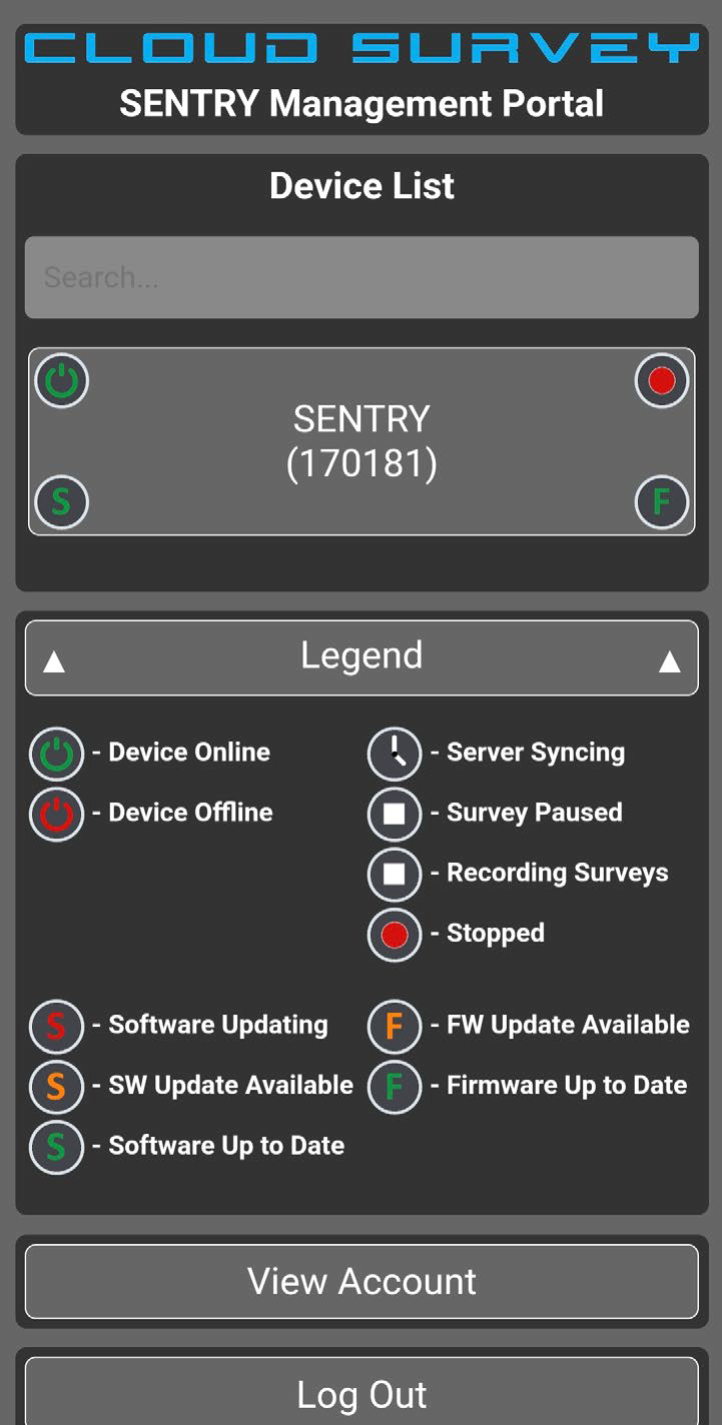
- Tap the SENTRY select button to open the controls for the SENTRY.
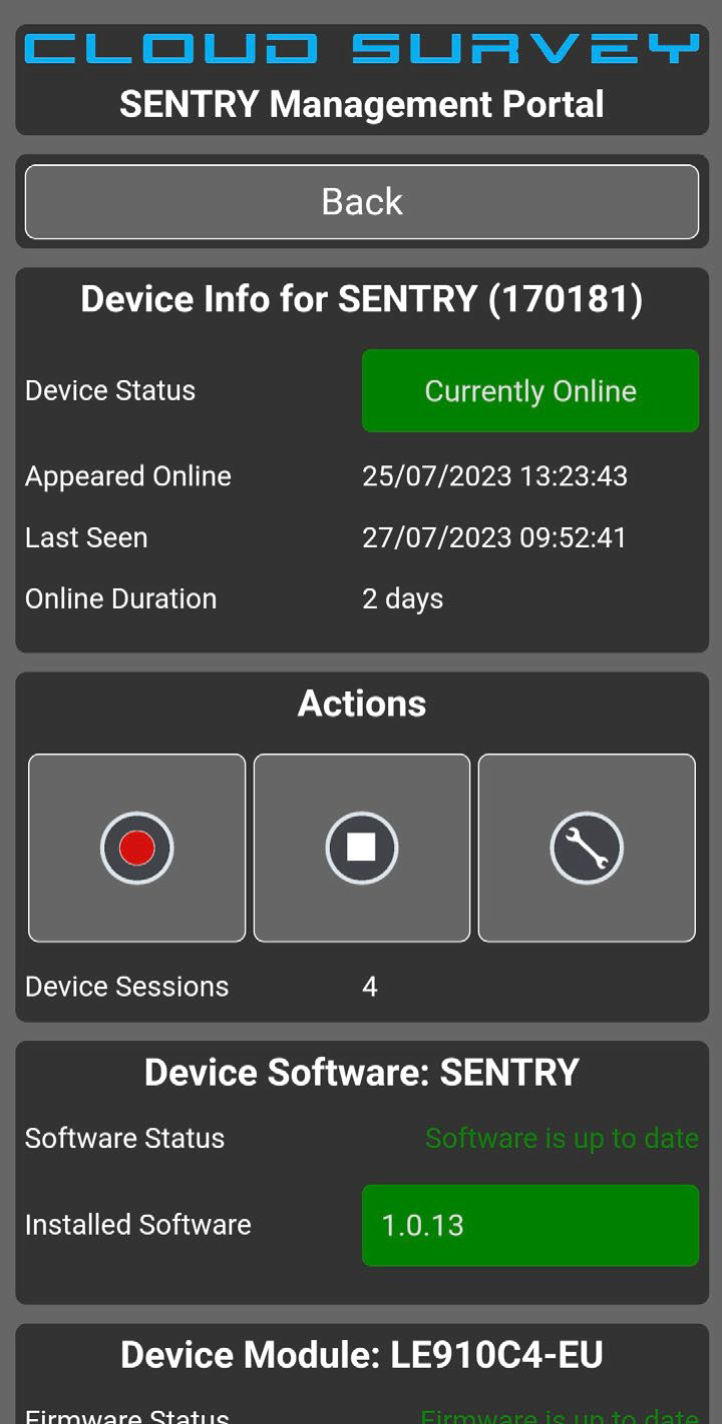
The controls on this page work in the same way as the web browser version of CloudSURVEY (see Using the CloudSURVEY portal to initiate surveys).
¶ CloudSURVEY Navigation
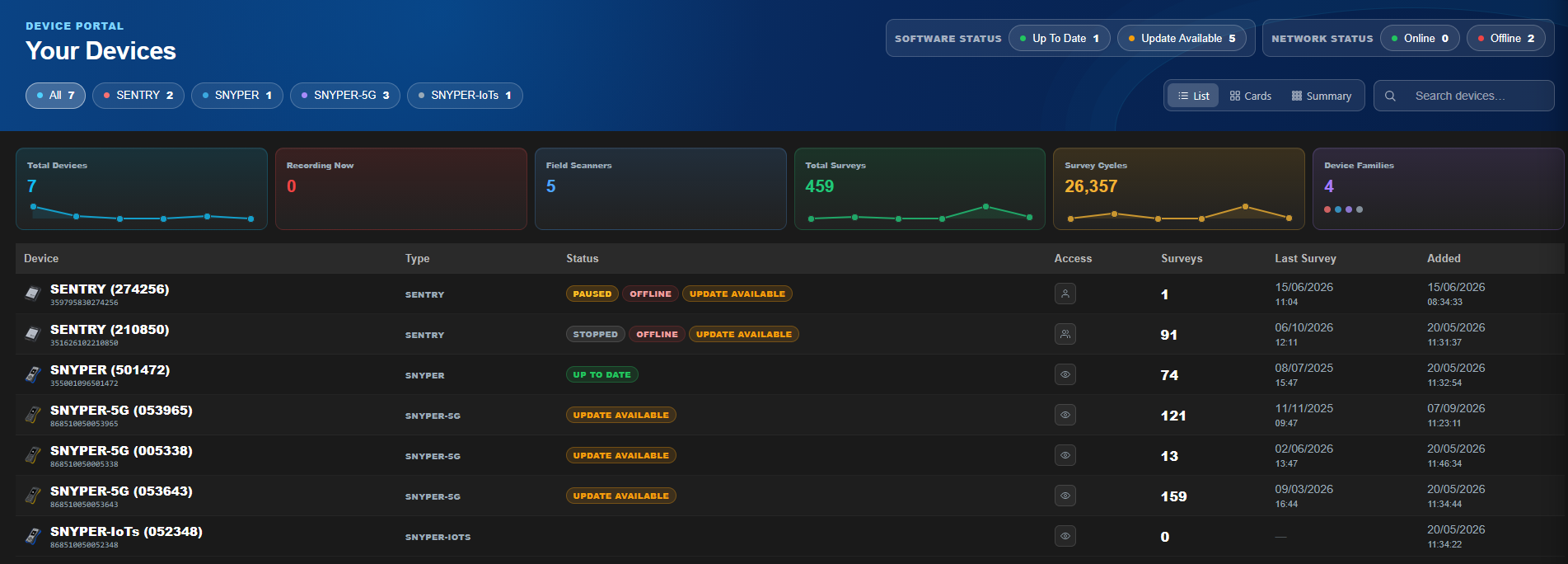
After logging into CloudSURVEY portal, the Device List page is displayed. This lists all the devices that are associated with the account – owned devices and devices to which the account user has viewing rights. This is the home page from which all the functions of CloudSURVEY are accessed.
The portal view is divided into three sections.
- Top header - Primary navigation buttons.
- Context section(s) - Contains the core page content.
- Footer - Copyright information and contact details.
¶ Top Header
The top header contains the four main navigation buttons and some additional information:

- View Account: This navigates to the Account Management page where website preferences and usage information is stored. The Token Shop can also be found here (see CloudSURVEY Account Management).
- View Device List: Lists all the devices associated with the CloudSURVEY account (see View Device List).
- View All Surveys: Lists all the surveys associated with the CloudSURVEY account (see Viewing all Survey Results).
- Logout: Sign out of the CloudSURVEY portal.
- Display Language: This translation service is provided by Google.
- Survey Search Bar: Enter a term and press enter to search all surveys for that term.
Search by the the following fields:- IMEI number
- Application version
- Filename
- Firmware version
- Hardware model
- Location
- Date
- Comments
- Account Icon: The initials of the account owner (using the intials letter of both the ‘First Name’ and ‘Surname’ fields in Account Management).
- Remaining Tokens: Shows the available tokens in the account.
¶ View Account
See CloudSURVEY Account Management.
¶ View Device List
This lists all owned devices and those to which viewing permissions have been granted.
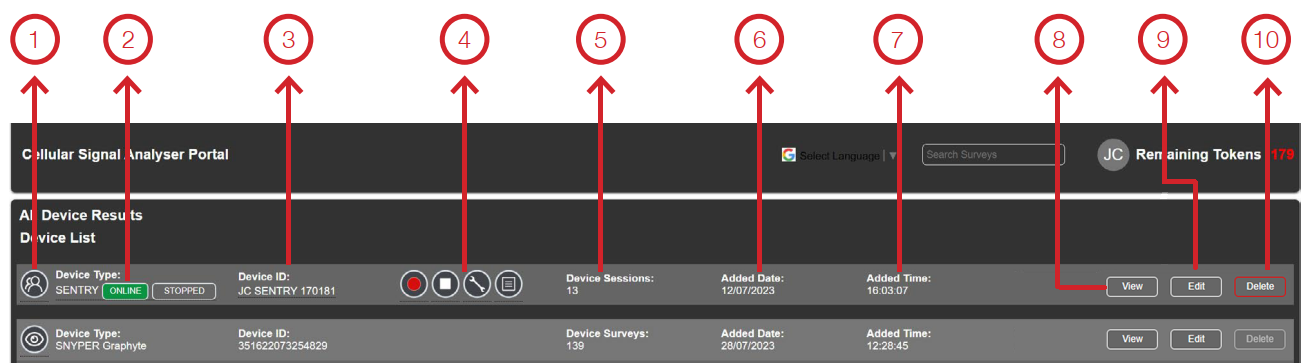
- Ownership: This icon indicates the ownership status of the device. Click to edit access permissions.

|
Indicates that you are the device owner and ownership is not shared with any other user. |

|
Indicates that you are a device owner and ownership is shared with one or more other users. |

|
Indicates an un-owned device to which viewing rights have been granted. |
- Device type: Displays the type of device associated with the account. The icons below indicate the device status.


- Device ID: For SNYPERs, it’s the device serial number; for SENTRYs, it’s “SENTRY” followed by the last 6 digits of the serial number.
- Surveying controls (SENTRY only): See Surveying with SENTRY.
- Device Sessions: This indicates the number of surveys recorded on CloudSURVEY from each device. For a SNYPER, this count represents surveys uploaded to CloudSURVEY (which may differ from the total conducted).
- Added Date: The date the device was added to the account—either when first registered by the account holder or when access permissions were granted by the owner.
- Added Time: The time the device was added to the account, based on the same criteria
as the date. - View: Lists all surveys conducted on the selected device.
- Edit : Allows you to view and edit certain details about the device:
- Device Nickname: The name entered in this field will be used as the Device ID rather than the system default name.
- Location: Provided for the user’s management needs.
- Owner: Provided for the user’s management needs.
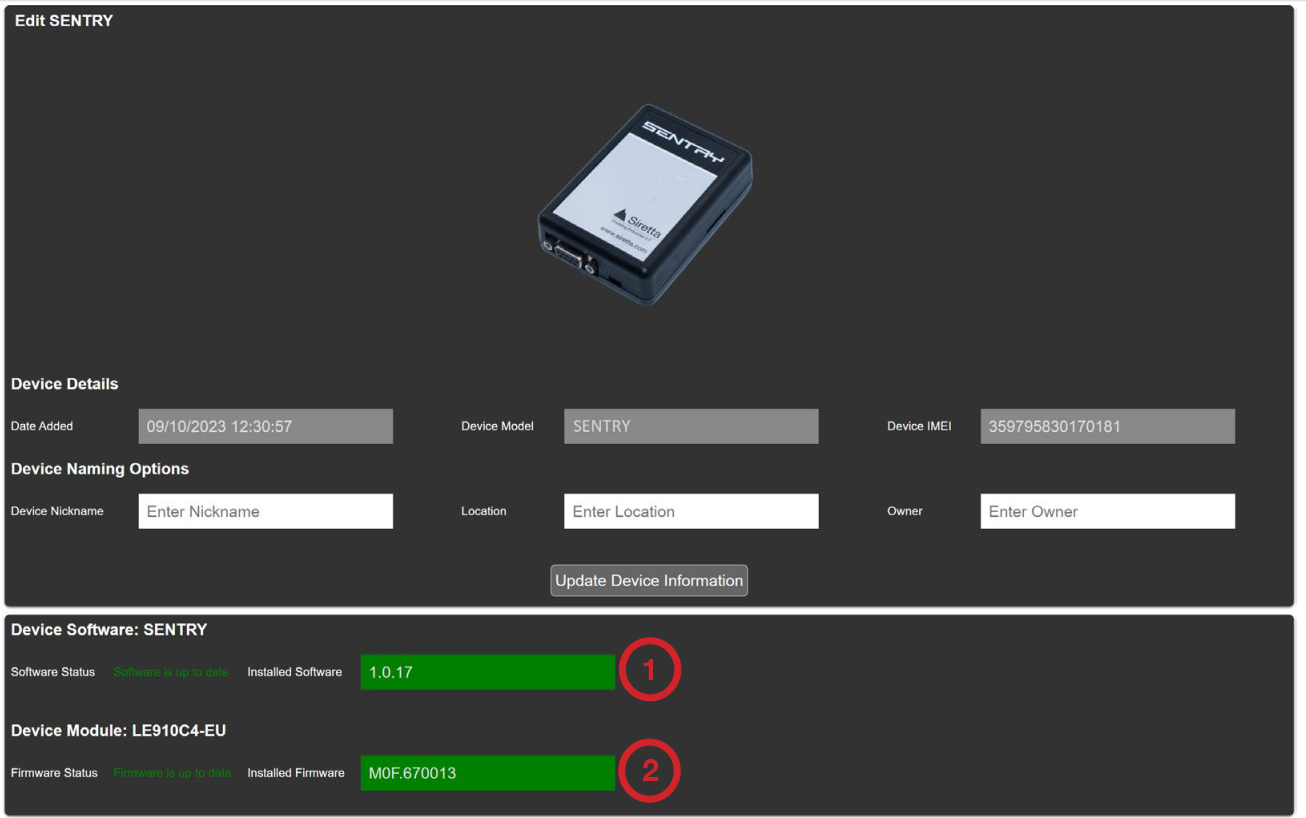
- Click Update Device Information to save any changes.
- If the unit is running on the latest software, it will be displayed against a green background; otherwise, it will be displayed against a yellow background.

- Recommended software: The latest available software version.
- Software update: Click to automatically update the software in the unit to the latest version. This should not be attempted whilst a survey is ongoing.
- Firmware Version: If the unit is running on the latest firmware, it will be displayed against a green background; otherwise, it will be displayed against a yellow background.
- Recommended firmware: The latest available firmware version.
- Firmware update: This must be performed locally using the SirettaSPARK tool. Clicking the button navigates to the download page.
- Delete: Deletes the device and all its surveys from CloudSURVEY. Removing a device allows another user to take ownership of it.
¶ Viewing All Surveys
Selecting ‘View All Surveys’ from the top menu shows all surveys saved to the CloudSURVEY account. This is a comprehensive list of surveys from all devices on the account. The list can be refined with filters or search terms and is organised by survey types (5G, GSM, LTE, LTE-M, NB-IoT, etc.), then by date and time.
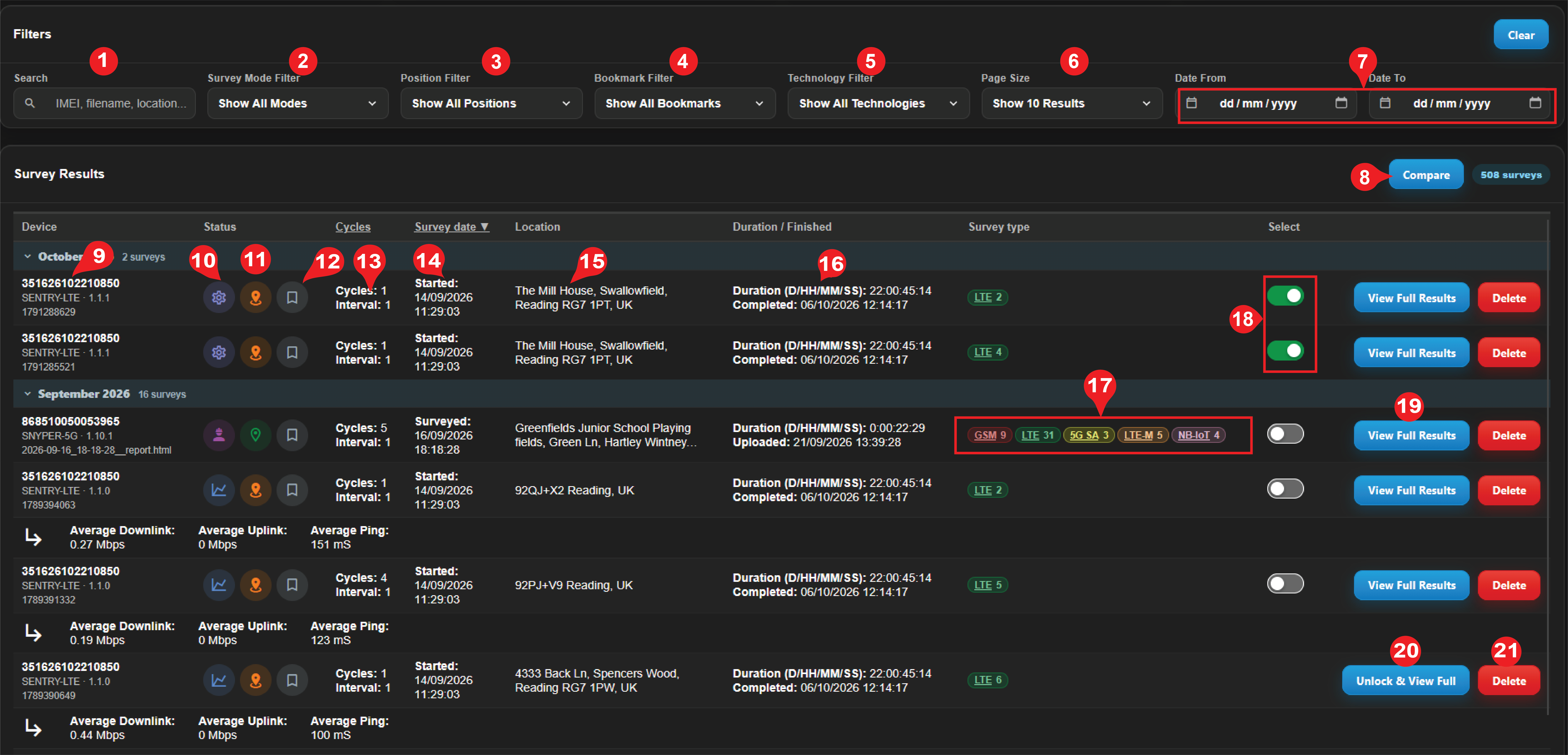
- Search bar: Use the search bar to filter results based on search terms e.g. addresses, postcodes, survey comments, IMEI numbers. Device nicknames cannot be used.
- Type the search term in the box and press the Enter key to refine the results based on the criteria.
- Survey Mode Filter: If desired, you can filter between Standard, Advanced or Engineering Mode results. All modes are shown by default.
- Position Filter: Refines the list by cell position determination (see step 14).
- Bookmark Filter: Refines the list by survey bookmark (see step 15).
- Presets Choose the number of results shown in the list. 10 surveys are shown by default; 25, 50, 100, or all results can be also displayed.
- Date From/To: Specify the date range to filter results.
Click the calendar icon to change the month and year or click in the dd, mm and yyyy fields to enter the values.
- Filter button: Click this button to apply filters. Click Clear to remove all applied filters.
- Selection checkbox: Select up to 4 surveys for comparison using the Compare button (see next step).
Selection checkbox only available for devices which have the full survey results unlocked.
- Compare: Upon selection of surveys in previous step, click this button to display a report merging the data from all selected surveys, with all identified cells overlaid on one map for comparison.
Button enabled after selecting at least 2 devices. Can only compare devices which have the full survey results unlocked.
- Device: Displays the survey device and its software version.
- Identity: Device ID or nickname if this has been changed.
- Filename: For SENTRYs, system-generated. For SNYPERs, user-defined.
- Survey type: Icons representing the type of survey conducted.

|
Standard |

|
Advanced |

|
Engineer |

|
Performance Monitoring |
- Cell Position Determination: The method by which the position of the cell has been determined

|
Position estimated from the position of cells discovered during the survey |

|
Position determined by the user or GNSS (SENTRY) |

|
Verified travelling GNSS position |

|
In very rare cases, a cell’s position may be indeterminable. If this happens, clicking on a survey with this icon will attempt to resolve the issue; if unsuccessful, it will remain unresolved. |
15. Survey bookmark: Icon representing the bookmark that the user has assigned the survey (all surveys default to ‘Standard Survey’ unless changed by the user).

|
Standard bookmark |

|
Interest bookmark |

|
Featured bookmark |

|
Problem bookmark |

|
Archive bookmark |
- Location: Where the survey was conducted as reported by Google Maps.
- Cycles: The number of survey measurement cycles in the survey.
- Interval: The time between the survey cycles (in seconds).
- Surveyed: Date and time at which the survey was started. For a SNYPER, the field is populated using the time set on the device. For a SENTRY, it reflects the server time.
- Duration: Duration of the survey, measured as the time between the start of the first survey and the end of the last survey. For SENTRY, start and end times are measured from receipt of the individual survey cycles on the server which, due to network processing times, may be a little out of phase with real time.
- Uploaded: Date and time that the survey was uploaded to CloudSURVEY. This is always the server time.
- Network Technology: Displays the number of cells detected for each network technology during the survey.
- View Results: Click to view survey results.
- Unlock Full: Show full survey results with detailed network parameters.
Unlocking full results will deduct 5 tokens.
- View Full Once full survey results have been unlocked (previous step), this button is displayed against the device in the Survey Results list (see Viewing a Survey).
- Delete: Removes the survey from the CloudSURVEY Portal.
¶ Analysing Surveys
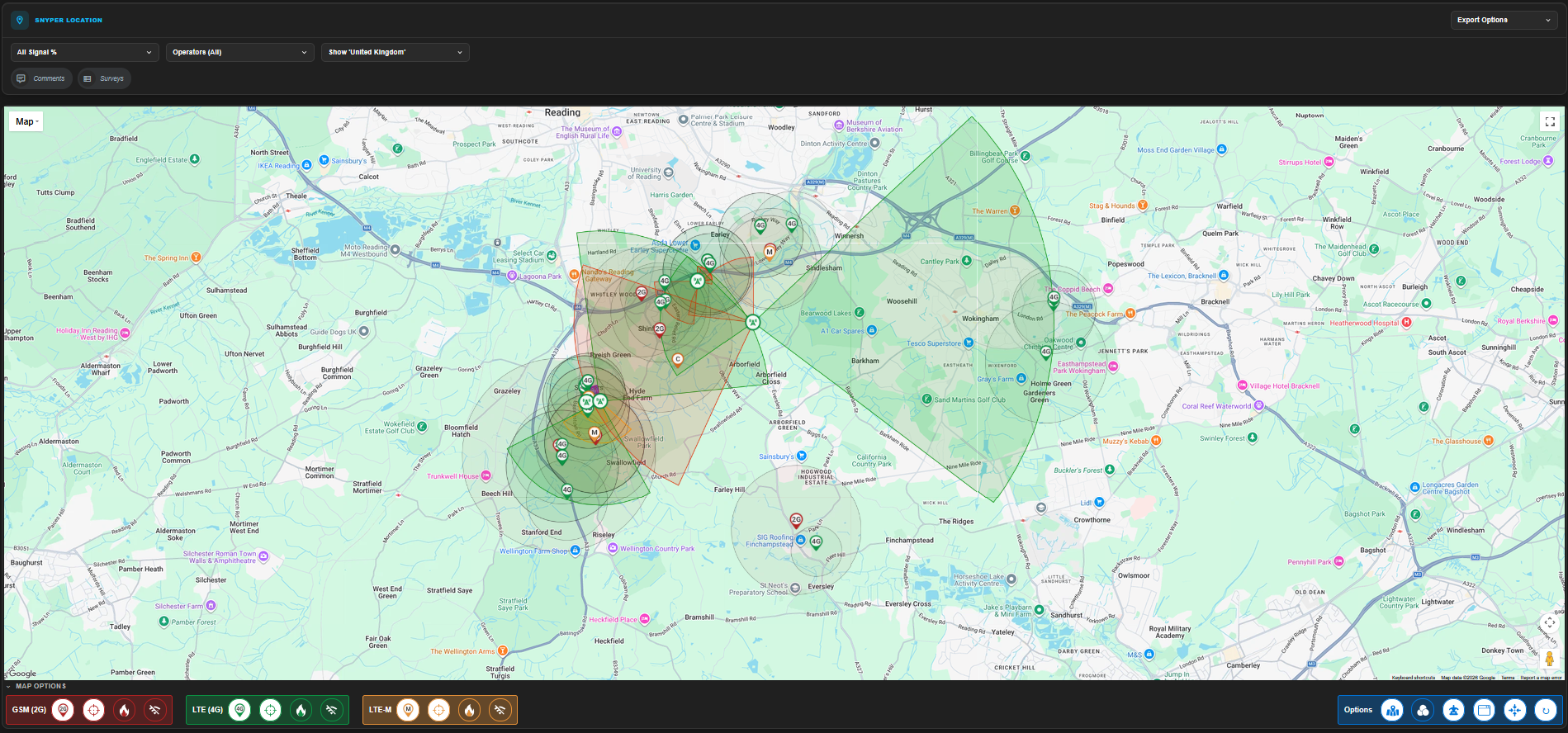
By default, surveys follow a similar layout as shown in the example below.
This default layout may be changed in the settings (see Settings).
¶ Survey Filter Header
The Survey Filter Header you to apply individual filters that apply to both the map and cell listing.
- Signal %: The signal percentage represents the measured signal strength as a percentage of the maximum possible signal strength.
- Technologies: Cells for all scanned network technologies s are displayed by default. This can be filtered to display cells for a single network technology.
- Operators: Cells discovered for all network operators are shown by default. This can be filtered to show cells by selected operators.
- Countries: Cells discovered for all countries are displayed by default. This can be filtered to show only the cells for the country in which the network scan was performed.
- Seen %: In a multi-cycle survey, this allows you to filter by the frequency at which a cell was discovered during the survey cycles.
- Update Survey and Save Copy (SNYPER only): Updates the location position and position of the cells to the latest database. Each update will consume a token for every cell on the map. This feature can be useful for identifying cells that were not initially registered in the database. It is not recommended to do this often as the underlying database does not update frequently.
- Device Settings (SENTRY only): Navigates to the SENTRY configuration page.
- View Surveys: Navigates back to the survey list page, filtered to display only the results from that specific device.
- Export Options: Exports the survey into one of the following formats:
- CSV report: Exports the cell data as a comma delimited CSV file.
- HTML report: Exports the view as a single HTML file. Note: Exporting the map is not possible.
- Direct Print/Print to PDF: Formats the report for printing or saving as a PDF file.
¶ Map
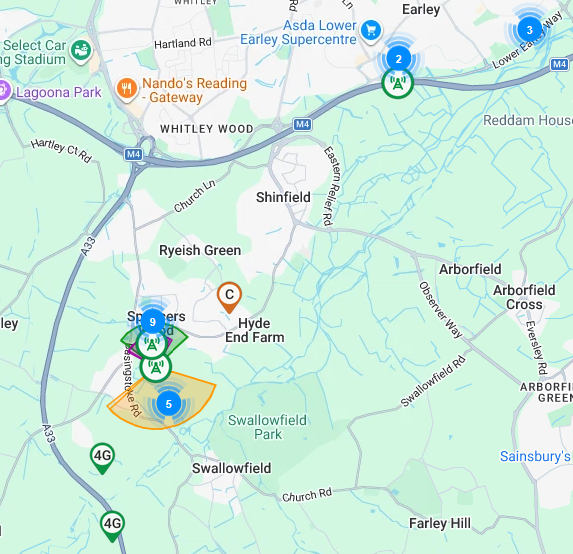
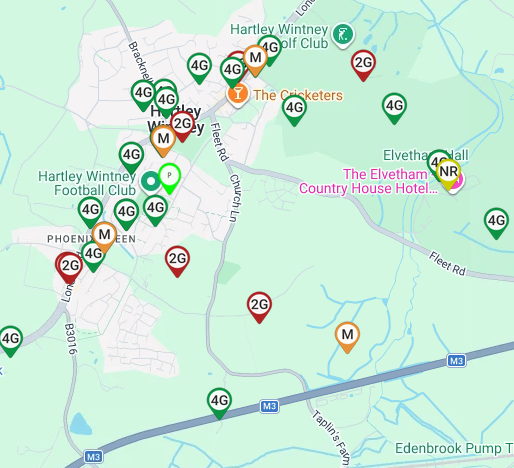
The survey map shows the identified positions of all cells around the survey location.
¶ Navigating the Map
The map can be navigated and zoomed in/out using the controls at the bottom-right of the map:
Alternatively, navigate the map by clicking and dragging the map as desired, or zoom in and out of the map by holding the Ctrl key while using the scroll wheel.
¶ Position Markers
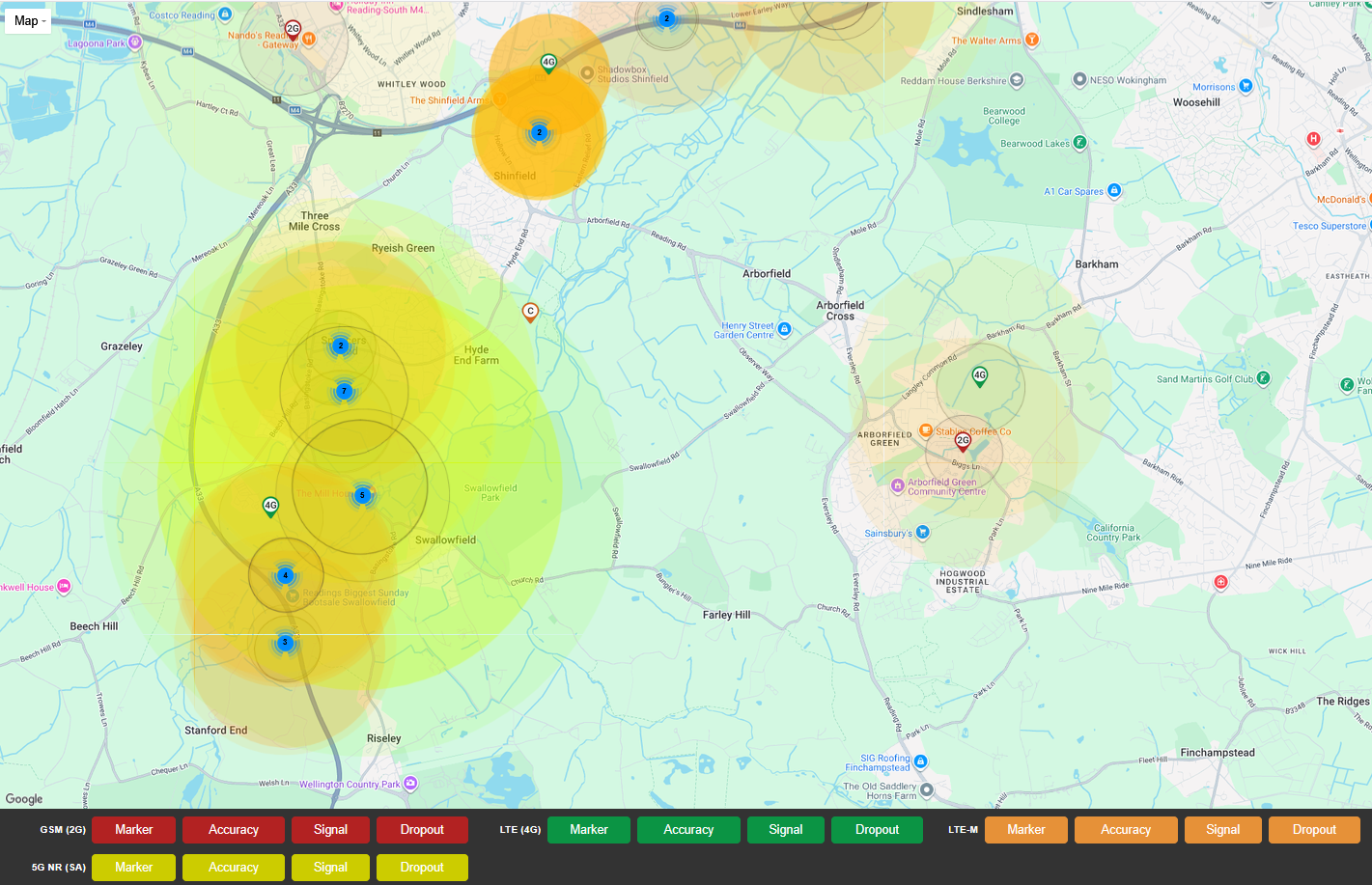
Position markers indicate the location where the survey was conducted, using three types of pins based on the location determination method:
- Orange pin: An approximation based on the position of discovered cells.
- Blue pin: GNSS-measured position.
- Green pin: User-defined position.
By default, an orange pin is used. SENTRY surveys conducted using the GNSS antenna will display a blue pin. Although unlikely, an orange pin might also appear on a SENTRY survey map if the GNSS receiver fails to determine the position.
To reposition an orange marker on the map, click and drag the pin to the desired location. When you release it, the marker becomes a user-defined position pin (turning green). Click on the pin to view the location details.
¶ Cell Markers
Cell markers indicate the physical location of a cell on the map. They can be represented by a single icon or a cluster icon depending on cell density and the map’s zoom percentage.
- Zooming in, or clicking on, a cluster reveals the individual cells within.
- Clicking on a cell pin reveals additional information about the cell.
| Icon | Name | Description |
|---|---|---|

|
Cluster icon | Represents multiple cells in close proximity. Clusters of 2–9 are blue, 10–99 are yellow and 100+ are red. |

|
Yellow 5G NR/SA pin | Represents the location of a 5G cell. |

|
Green 4G pin | Represents the location of a 4G cell. |

|
Red 2G pin | Represents the location of a 2G cell. |

|
Orange LTE-M pin | Represents the location of an LTE-M cell. |

|
Pink NB-IoT pin | Represents the location of an NB-IoT cell. |
Cell placement information is generated using third-party mapping and location data services through the Google Maps API. CloudSURVEY uses these services to provide worldwide coverage and to support ongoing refinement of estimated cell locations. Cell tower positions are continuously updated as new data becomes available, and new cells are regularly added to the database. As a result, a missing cell marker may still display in the future.
¶ Map Display Buttons and Options
These options provide the user with the ability to refine and restrict the information on the map to certain criteria. For example, it can be used to isolate and display only cell types of a particular network technology. Buttons will display bright when selected and dim when deselected.

- Marker: Show/hide cells of the corresponding network technology.
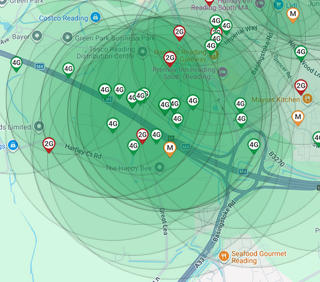
- Accuracy: Plots a circular region around each cell to visually represent the potential radius within which the cell’s location could fall.
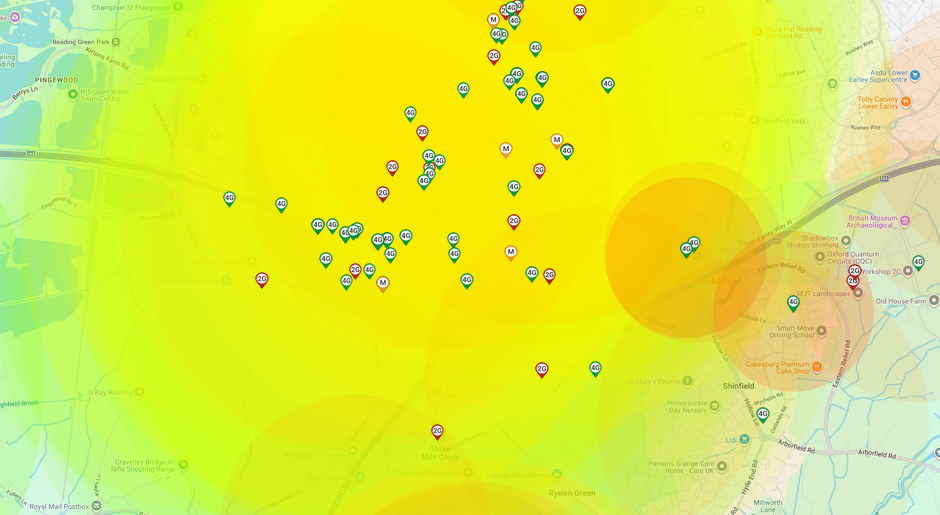
- Signal: The signal heatmap is a visual representation of the strength and distribution of a signal across a specific geographic area. The heatmap uses colour gradients to indicate varying signal strengths, with different colours representing different levels of intensity. The colours used correspond to a hue range of 0 to 120 degrees on the HSL colour wheel (red - green).
- Dropout: Cells exhibiting a signal strength of 20% or less are flagged for poor signal quality. To highlight the impacted area, a circular region will be drawn around each of these identified cells. The colour of the area changes according to signal strength, aligning with a hue range of 0 to 120 degrees on the HSL colour wheel (red – green).
-
Position: Show or hide any position markers on the map.
-
Cluster: Enable/disable cluster icons on the map regardless of zoom level.
-
Information: Enable/disable additional information when clicking on a cell.
-
Recenter: Reposition the map to a central position in relation to located cells.
-
Comments box: Provide any comments here.
-
Bookmark: Change the bookmark displayed on the survey.
-
Save Bookmark and comments: Save any changes made to bookmark and/or comments.
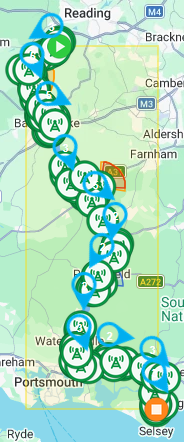
¶ Travelling Survey (SENTRY only)
Sentry devices can perform a travelling survey using a GNSS antenna. This survey method tracks the device from its starting point to its destination, recording the route taken and all cells encountered along the journey. Recorded metrics include:
- Survey date and start time
- Starting co-ordinates (Lat/Long)
- Starting address
- Direction (in degrees)
- Altitude (m)
- Travel speed
- Number of cells of each network technology
- Cell usage (%) per network operator for each network technology
¶ Travelling Markers
| Icon | Name | Description |
|---|---|---|

|
Direction arrow | A marker indicating the recorded position and direction of the device at a given time. These markers are placed along the route taken. Clicking on one reveals further details. |

|
Start location | Represents the starting location of the survey. |

|
End location | Represents the ending location of the survey. |
¶ Survey Overview
By default, a Survey Overview dashboard is displayed at the bottom of the page below the Survey Map. This provides a clear snapshot of key survey information.
The Survey Overview is the default view but this can be changed in settings (see Settings).
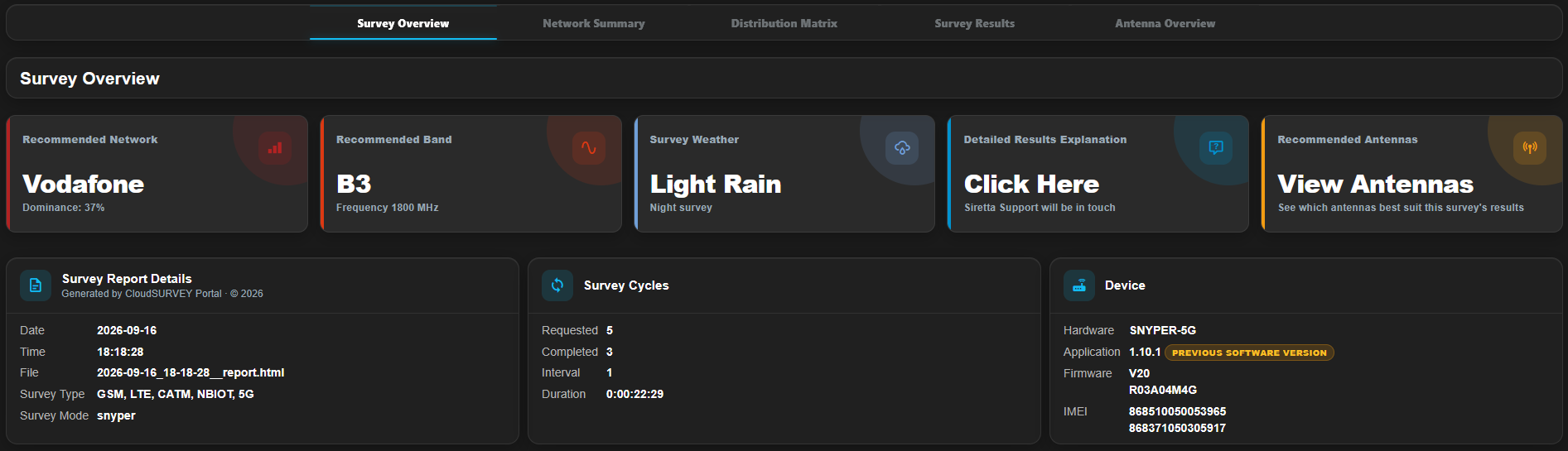
The Survey Overview dashboard comprises the following interactive widgets:
- Recommended Network: Indicates the most suitable network to use. This is determined by identifying the network with the highest dominance, which is calculated based on how frequently it appears throughout the survey. Click on this widget to view the Network Summary tab.
- Recommended Band: Suggests the most ideal frequency band to use. This is the frequency band most commonly observed across all detected networks. Click on this widget to go to the Distribuition Matrix.
- Survey Weather: Describes the weather conditions during the time of the survey. Click in this widget to change the weather conditions.
- Detailed Results Explanation: If you’d like help with understanding the results, click this widget and a member of the Siretta support team will get in touch to guide you through the findings.
¶ Network Summary
The Network Summary tab provides a tabulated breakdown of all detected cellular networks.
Each cellular technology is displayed within its own collapsible section, making it easy to navigate between them. For each technology, the key metrics are illustrated using bar charts, showing the number of detected cells, network dominance percentages, and signal variability. Hovering over any bar will display a tooltip with some additional context.
A dedicated Combined Network Summary section consolidates data from all recorded technologies into unified charts, allowing for easier comparison of overall network dominance and signal stability across all major providers.
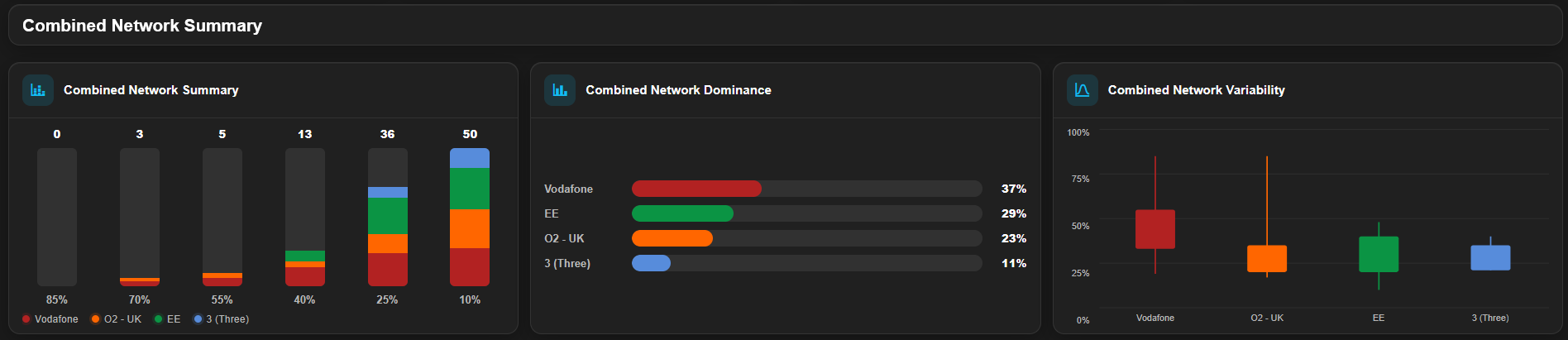
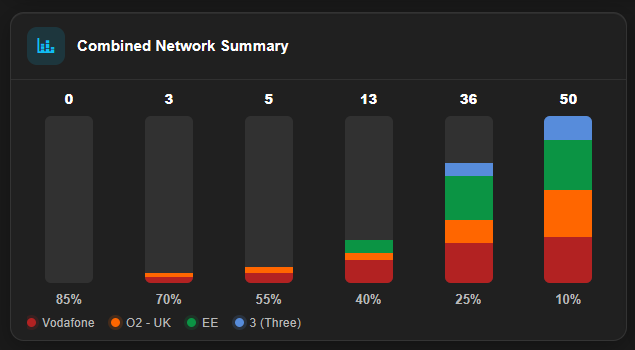
¶ Network Summary Section
Network summary is a rolling tally of the cells within each signal band.
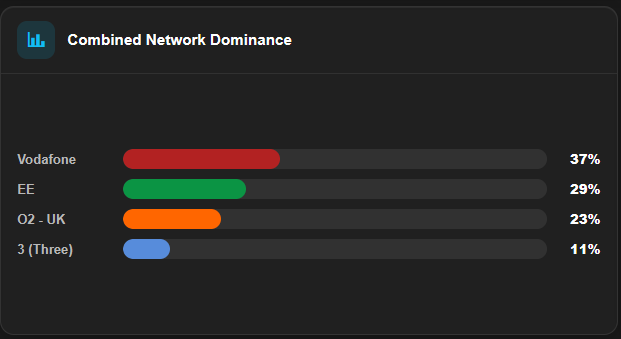
¶ Network Dominance Section
Network dominance is determined by how often an operator appears, along with the strength of its recorded signals.
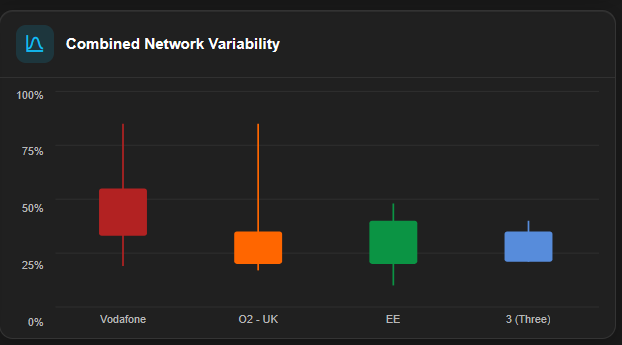
¶ Network Variability Section
Network Variability provides insight into signal stability for each network operator.
Each box plot displays the range and distribution of signal strength values. The vertical lines (whiskers) represent the minimum and maximum values recorded, while the central block (box) shows the interquartile range, where the middle 50% of the data lies.
A narrower box indicates more consistent signal strength, while a wider box suggests greater variability.
¶ Distribution Matrix
The Distribution Matrix offers a comprehensive breakdown of network performance using heatmaps and pie charts. Each network technology is analysed using key data visualisations that map the relationships between network providers and frequency bands.
RSRP and RSRQ metrics are not applicable to 2G and therefore are not shown for this technology.
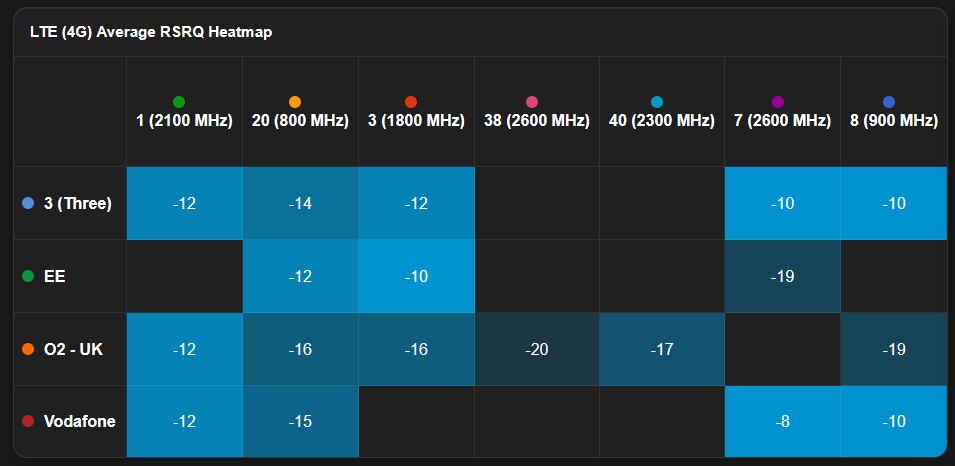
¶ Average Signal Heatmap
This heatmap displays the average signal strength (in dB) for each network operator across specific frequency bands. It provides insight into how well each carrier performs on each band in terms of signal quality.
¶ Average RSRP Heatmap
This heatmap displays the average Reference Signal Received Power (RSRP) values (in dBm) for each network operator across specific frequency bands.
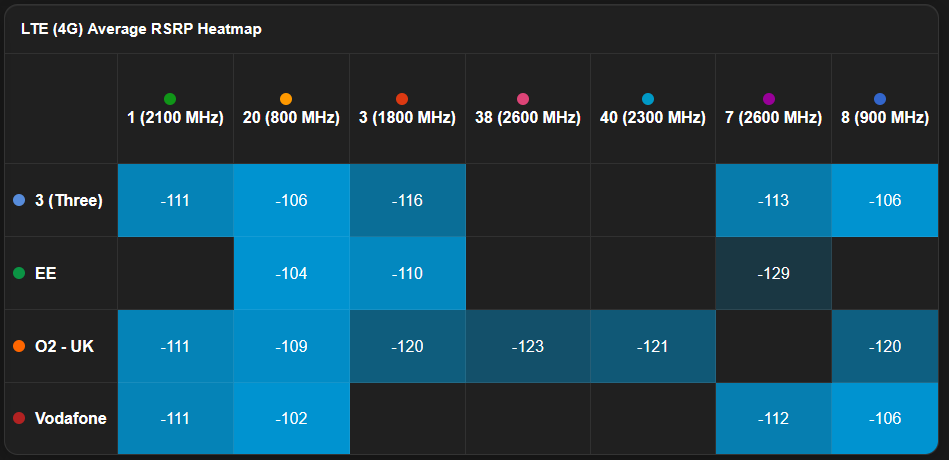
The following table provides a guide for interpreting RSRP measurements and assessing cellular network signal strength:
| RSRP (dBm) | Signal Strength | Quality |
|---|---|---|
| ≥ -80 | Excellent | Very strong coverage |
| -80 to -90 | Good | Reliable service |
| -90 to -100 | Fair | Acceptable coverage |
| -100 to -110 | Poor | Coverage becoming weak |
| -110 to -120 | Very Poor | Unreliable service |
| < -120 | Extremely Weak | Coverage likely unusable |
¶ Average RSRQ Heatmap
This heatmap displays the average Reference Signal Received Quality (RSRQ) values (in dB) for each network operator across specific frequency bands.
The following table provides a guide for interpreting RSRQ measurements and assessing cellular network signal quality:
| RSRQ (dB) | Quality |
|---|---|
| -3 to -9 dB | Excellent |
| -10 to -12 dB | Good |
| -13 to -15 dB | Fair |
| Below -15 dB | Poor |
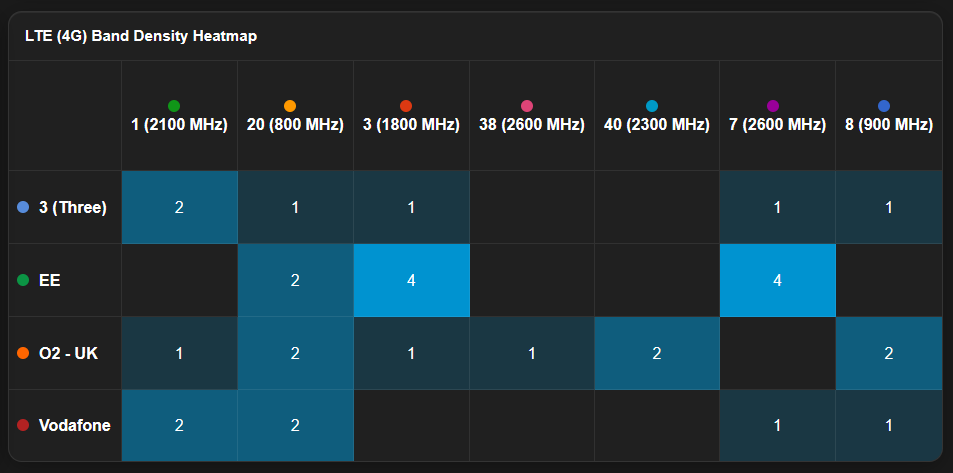
¶ Band Density Heatmap
This heatmap shows the number of cells observed for each carrier-band combination. It reflects how frequently each band is used by the respective network operator, helping assess network deployment strategy.
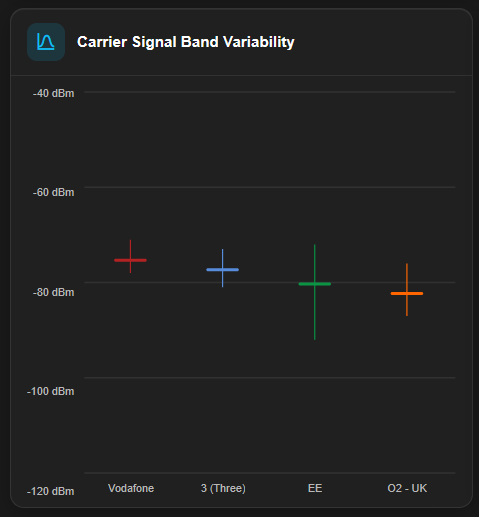
¶ Carrier Signal Band Variability
This chart compares the signal strength distribution measured across network operators. The white dot within each coloured bar indicates the average signal level for each operator, while the coloured bar represents the range (variability) of signal strengths discovered during the survey.
Stronger signal is represented by values closer to 0 dB, while weaker signal is represented by more negative values.
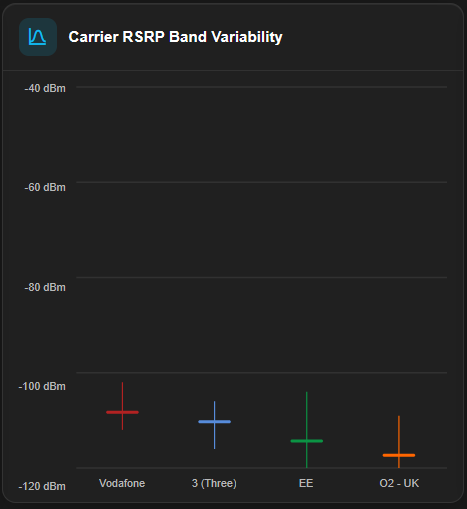
¶ Carrier RSRP Band Variability
This chart compares RSRP across network operators, highlighting the relative strength and consistency of their signals. The white dot within each coloured bar represents the measured average RSRP values for each operator, while the coloured bar represents the range (variability) of RSRP values.
Since RSRP is measured in dBm, values closer to 0 dBm indicate stronger signal strength, while more negative values indicate weaker reception.
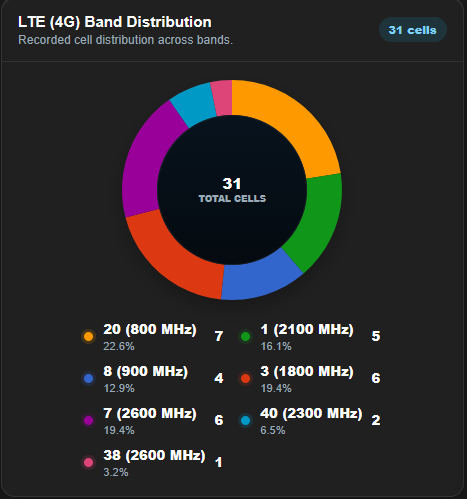
¶ Band Distribution Pie Chart
This chart provides a percentage-based breakdown of how often each frequency band appears across all observed networks. It’s essentially a tally of the columns from the band density heatmap, highlighting which bands are most frequently utilised.
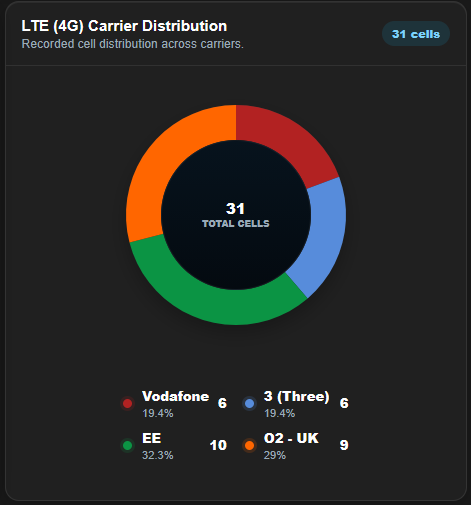
¶ Carrier Distribution Pie Chart
This chart shows the percentage of observed cells for each carrier, effectively a tally of the rows in the Band Density Heatmap. It reflects how much coverage or activity each network operator has in the dataset.
¶ Survey Results
¶ Table of Discovered Cells
All cells discovered during the survey are listed within this section. By design, a SENTRY surveys only one network technology at a time, whereas a SNYPER, depending on its configuration, can produce a survey covering all network technologies.
The reported information can differ depending on the network technology surveyed. These differences occur because of the differences in the technologies.
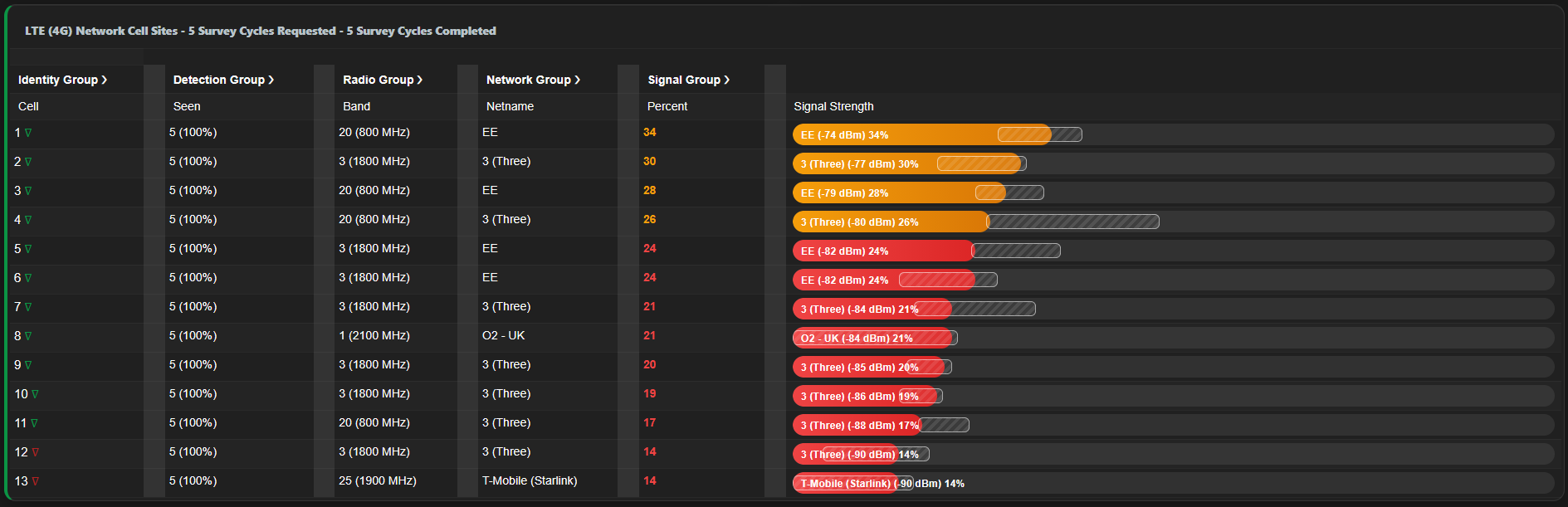
Cells are listed in descending order of signal strength, with the strongest at the top and weakest at the bottom.
Hover over the green upside-down triangle icon to reveal the latitude/longitude of the cell. Clicking it will bring up its exact location on the cell map. Although uncommon, a red triangle indicates that the cell position could not be located on the map. This is more likely with a very low signal strength cell, an NB-IoT cell, or where some information may have been corrupted.
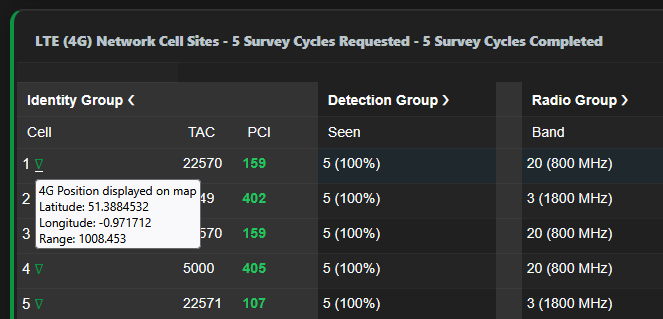
The following table explains the terminolgy used:
| Term | Technology | Description |
|---|---|---|
| Identity Group | ||
| LAC | GSM, UMTS | Location Area Code. This is assigned by the network operator to a group of cells in an area. Often given to the cells on a cell tower. Defined by 3GPP 23.003. |
| PCI | LTE, LTE-M, NB-IoT, NR | Physical layer Cell Id. In conjunction with the EARFCN, this will uniquely identify a broadcast channel. Defined by 3GPP TS 36.211. |
| TAC | LTE, LTE-M, NB-IoT, NR | Tracking Area Code. This is assigned by the network operator to a group of cells in an area. Often given to the cells on a cell tower. Defined by 3GPP TS 23.003. |
| Detection Group | ||
| Seen | All technologies | Number of times the cell is discovered over the network scan cycles. |
| Index | All technologies | Position in the database. |
| Radio Group | ||
| ARFCN | GSM | Absolute Radio Frequency Channel Number. This defines which frequency channel within a band that the cell uses. Used to calculate the upload and download frequencies. Defined by 3GPP TS 45.005. |
| BW | LTE | Bandwidth of the cell (in MHz). |
| EARFCN | LTE, LTE-M, NB-IoT | E-UTRA Absolute Radio Frequency Channel Number. This defines which frequency channel within a band that the cell uses. Used to calculate the upload and download frequencies. Defined by 3GPP TS36.101. |
| UARFCN | UMTS | UTRA Absolute Radio Frequency Channel Number. This defines which frequency channel within a band that the cell uses. Used to calculate the upload and download frequencies. Defined by 3GPP TS 25.213. |
| NR-ARFCN | NR | New Absolute Radio Frequency Channel Number is a unique identifier for radio frequency channels in the 5G New Radio (NR) standard. Used to calculate the upload and download frequencies. Defined by 3GPP TS 38.104. |
| Cell ID | All technologies | Cell Identifier: This is an ID assigned to a cell. It is not unique on its own and can be repeated in larger countries. However, when combined with the LAC/TAC, it becomes unique. |
| DL (MHz) | All technologies | The download frequency, calculated from ARFCN / UARFCN or EARFCN. |
| UL (MHz) | All technologies | The upload frequency, calculated from ARFCN / UARFCN or EARFCN. |
| Network Group | ||
| MCC | All technologies | Mobile Country Code. A unique code that normally specifies the country that a cell is located in. Some larger countries may have two or more MCC assigned to them. There are also non-geographic codes for applications such as maritime. Defined by ITU-T E.212. |
| MNC | All technologies | Mobile Network Code. A unique code that identifies the network operator of the cell. Some network operators may have two or more MNC assigned to them. Defined by ITU-T E.212. |
| Latitude | All technologies | A geographic coordinate that specifies the north-south position. |
| Longitude | All technologies | A geographic coordinate that specifies the east-west position. |
| Signal Group | ||
| dBm | All technologies | |
| RSSI | UMTS, LTE, LTE-M, NB-IoT, NR | Received Signal Strength Indication. This is derived from the dBm measurement. |
| RSRP | LTE, LTE-M, NB-IoT, NR | Received Signals Received Power. This is the power received in the bandwidth of operation. Defined by 3GPP TS 36.214. |
| RSRQ | LTE, LTE-M, NB-IoT, NR | Reference Signals Received Quality. Received power divided by the RSSI. This is the measure of signal interference, as measured at the antenna connector. Defined by 3GPP TS 36.214. |
| SCR | UMTS | Scrambling code. In conjunction with the UARFCN, this will uniquely identify a broadcast channel. Defined by 3GPP TS. |
| RSCP | UMTS | Received Signal Code Power. The received power taking no account of noise. Defined by 3GPP TS 25.215. |
| ECIO | UMTS | EC/IO is the signal to noise level of the received signal, measured in dB. Defined by 3GPP TS 25.133. |
| BSIC | GSM | Base Station Identity Code. In conjunction with the ARFCN, this will uniquely identify a broadcast channel. Defined by 3GPP TS 03.03. |
¶ Journey Telematics
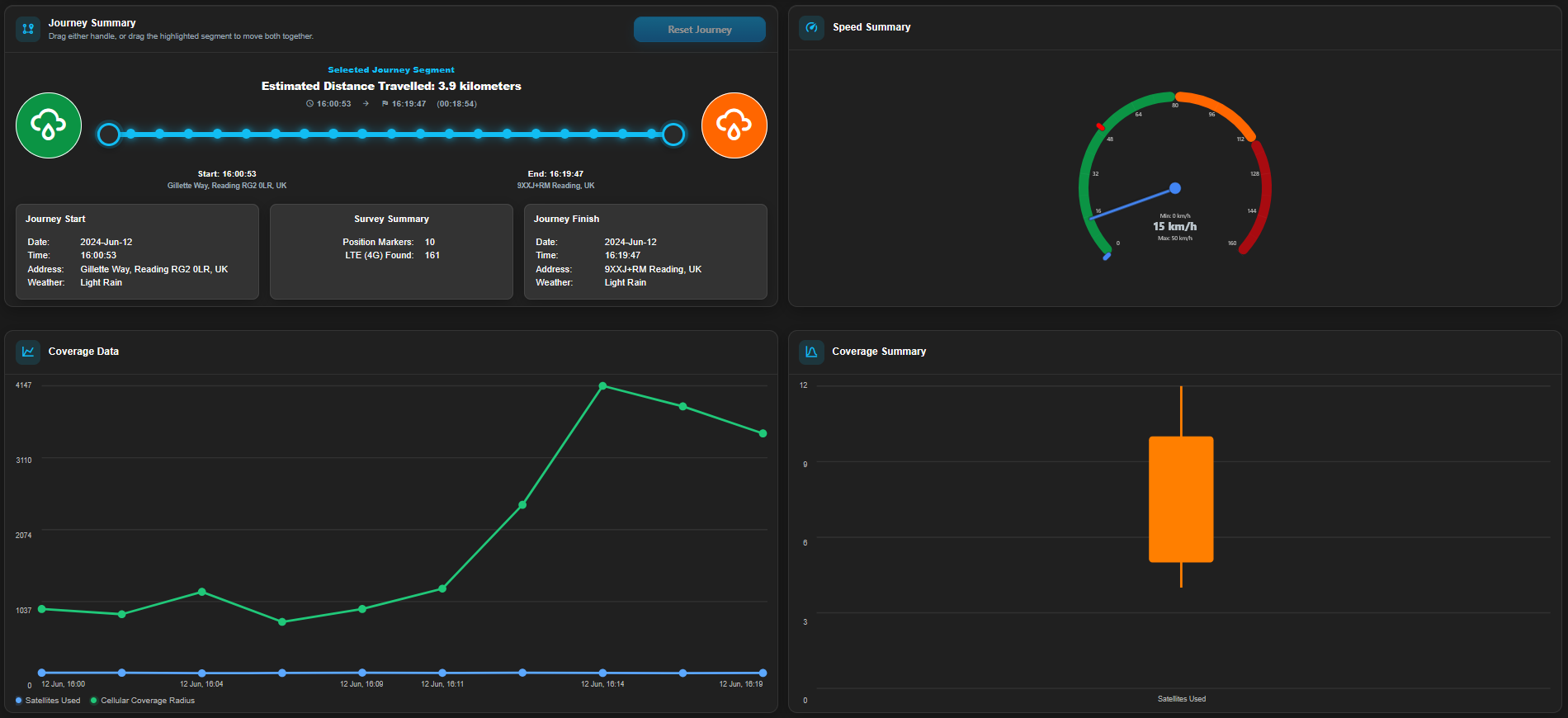
Journey telemetry is only applicable to travelling surveys. It provides an overview of a recorded journey, combining cellular coverage data, GPS telemetry, and speed metrics.
¶ Journey Summary
The Journey Summary displays an overview of the entire journey recorded during the survey:
- Estimated Distance Travelled: The total length of the route calculated based on GPS position markers.
- Journey Start / Finish: The total length of the route calculated based on GPS position markers.
- Date & Time: Marks the exact time the journey began and ended.
- Address: Indicates the GPS-based location at both the start and end of the journey.
- Weather: Describes the weather conditions during the trip (e.g. “Heavy Rain”), which can affect signal quality and GPS accuracy.
- Position Markers: The number of GPS points where data was logged.
- Networks Found: A count of each cell found of a particular network technology. This helps show which technologies were available along the route.
¶ Speed Summary
This speedometer-style gauge visualises the speed profile of the journey:
- Minimum Speed: The slowest recorded speed during the trip.
- Maximum Speed: The fastest speed reached.
- Average Speed: Displayed in the centre, showing the mean speed throughout the journey.
¶ Coverage Data
This is a timeline chart showing how GPS visibility varies over the course of the journey. The plotted orange line represents the number of GPS satellites visible at each point in time. A higher number generally results in better location accuracy. Hover hover a data point on the line to reveal more information.
¶ Coverage Summary
This is a box plot summarising the distribution of satellite counts during the journey. It helps in assessing the reliability of GPS tracking across different areas (e.g. fewer satellites might indicate signal blockage due to terrain or weather).
¶ Performance Monitoring (SENTRY only)
Network Performance Monitoring is a survey feature available exclusively for the SENTRY. It runs a performance scan on the SENTRY’s active cellular network, evaluating the real-world performance of its connection beyond basic network availability and signal-level measurements.
The feature monitors key connectivity metrics, including:
- Signal strength
- Cellular, TCP/IP and socket registration times
- Ping latency
- Upload and download throughput
Each metric is presented through a dedicated gauge or chart, providing a clear overview of network performance and enabling quick identification of connectivity issues.
To display these metrics, both the Operating Mode and Network Steering must be configured in the SENTRY’s Device Settings before the survey is performed. Set the Operating Mode to ‘Post Network Survey & Performance’ and configure Network Steering to ensure that the SENTRY consistently tests the intended network and cell.
A Sentry survey which has been configured for Perfomance Monitoring will have the following icon displayed against it in the Survey Results list: 
Performance Monitoring measures the cell that the SENTRY is connected to during each survey. The SENTRY does not automatically reconnect to the same cell with each survey, so there is the possibility that the SENTRY could test different cells upon subsequent surveys. To ensure consistent testing of a particular network, Network Steering should be configured in the Device Settings before starting the survey.
¶ Registration and Connection Time
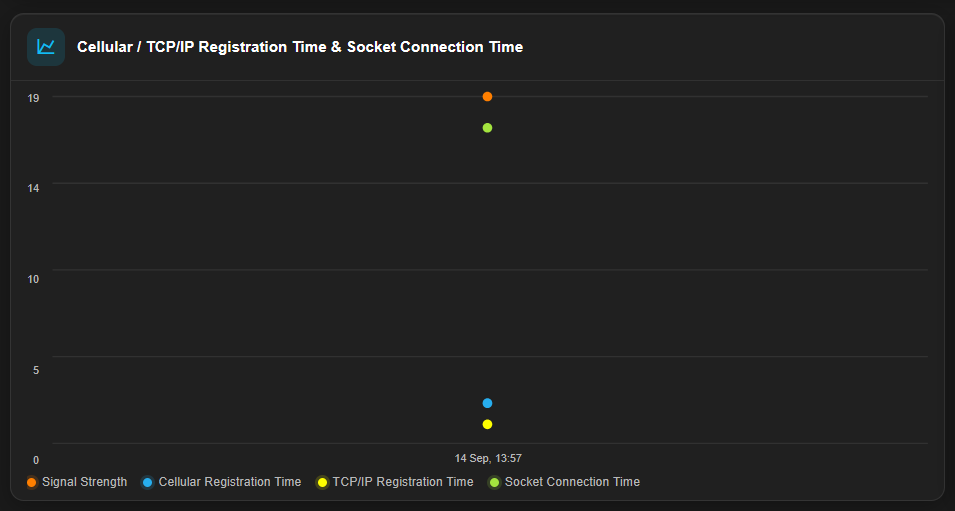
Four primary parameters are graphed over time for comprehensive analysis:
- Signal Strength (Yellow): Measured as a percentage of the maximum possible cellular signal. In practice, values above 25% are generally sufficient for reliable service. 100% is rarely observed under normal conditions.
- Cellular Registration Time (Blue): The time it takes the SENTRY to register to the network, enabling voice and SMS services.
- TCP/IP Registration Time (Orange): The time required to obtain an IP address from the network post-registration.
- Socket Connection Time (Green): The time to establish a connection to a remote IP address.
¶ Upload/Download Performance
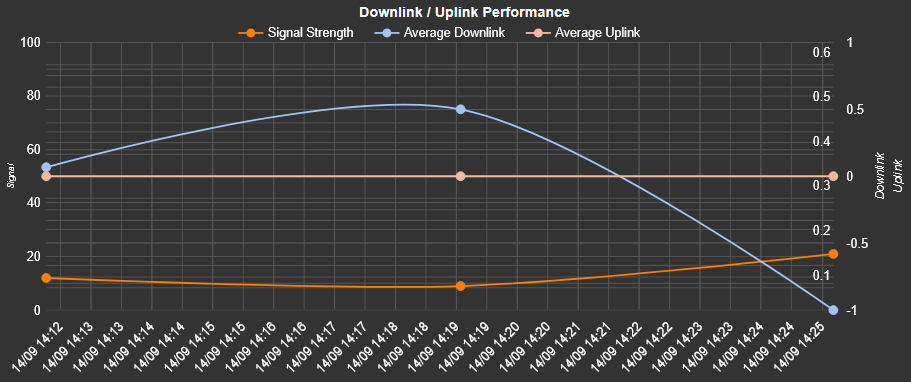
This evaluates the throughput capabilities of the network. The SENTRY connects to cloud-survey.co.uk to determine average upload and download speed. The SENTRY uses an LTE Cat 4 modem, so the maximum theoretical speeds that can be achieved are:
| Technology | Max Download | Max Upload |
|---|---|---|
| LTE | 150 Mbps | 50 Mbps |
| UMTS (HSPA+) | 42 Mbps | 5.76 Mbps |
| EDGE / GPRS | 296 kbps | 236.8 kbps |
Real-world values often fall below these theoretical maximums due to factors like network congestion, cell tower limitations, and signal interference.
¶ Comparative Network Performance
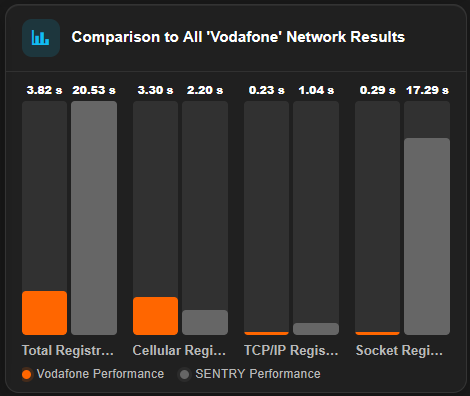
These charts provide a side-by-side comparison between the current SENTRY survey results and the monitored network provider’s overall averages from other surveys.
The comparison includes the total registration time and the time taken for each stage: cellular registration, TCP/IP registration and socket registration. This helps identify whether performance at the current location is typical for the network or whether delays are occurring during a particular stage of the registration process.
¶ Registration Performance
The Registration Performance chart compares the time taken by the SENTRY to establish a cellular connection with the selected network against the benchmark result. The upper bar shows the benchmark registration times, while the lower bar shows the registration times measured by the SENTRY.
Each bar is divided into cellular registration, TCP/IP registration and socket registration stages. The duration of each stage is displayed in seconds, allowing performance differences and delays in the connection process to be quickly identified.

¶ Ownership
Every device used with CloudSURVEY is associated with an owner. The owner of a device also has ownership of the surveys conducted by that device on CloudSURVEY. The owner can grant permissions to other CloudSURVEY users to view surveys from their device.
SENTRY owners can also authorise other users to set up and conduct surveys.
¶ SENTRY Ownership Determination
Ownership of an un-allocated SENTRY is assigned to a user using the SirettaSPARK tool. Upon connecting the device and opening the software, the user will be prompted to allocate the device to their account.
An owner may choose to relinquish ownership over a device in one of two ways:
- Deleting it from CloudSURVEY. This deletes both the device and all surveys conducted by that device from CloudSURVEY. The device will return to the un-allocated state.
- By transferring ownership to another CloudSURVEY user. This transfers ownership of not only the device but also of all data associated with the device on CloudSURVEY.
¶ SNYPER Ownership Determination
Ownership of a SNYPER on CloudSURVEY is established by the first user to access a survey conducted by the device. Possessing the physical device does not confer ownership from CloudSURVEY’s perspective.
¶ Changing Ownership Permissions
Ownership Permissions can be managed by clicking on the ownership icon to the left of the device in the device list.
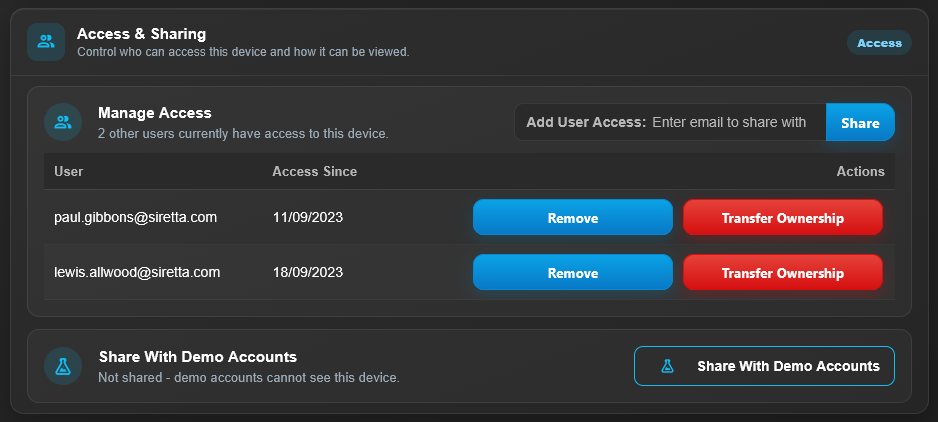
This action will display a page listing all users who have access to the device, providing options to add new users, remove existing users, or transfer ownership.

¶ Account Management
Click View Account in the page header to access account settings. From here, you may customise display options, change account settings, track token usage, and manage other preferences.
The page is divided into separate tabs:
- Account Summary
- Settings
- Subscription
- Personal Information
- Purchase Tokens
¶ Account Summary
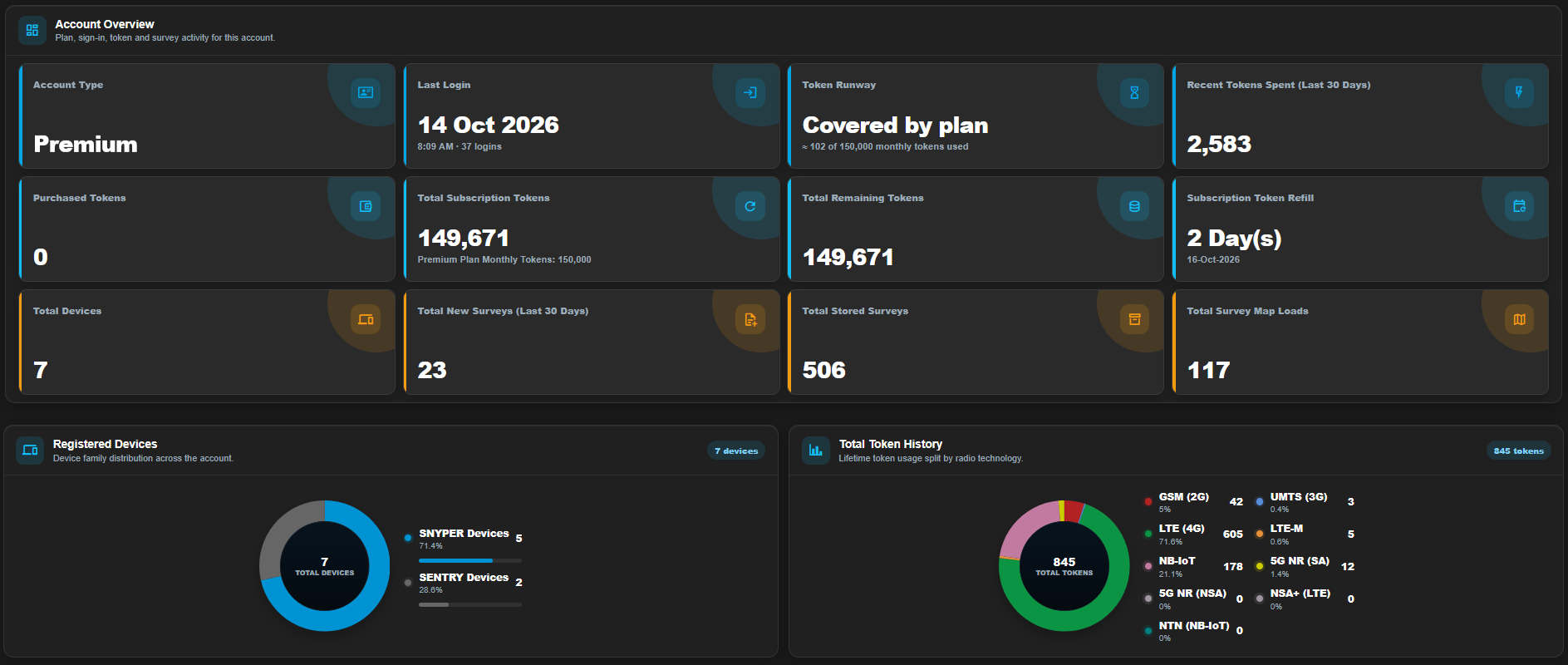
Provides clear overview of your account at a glance. Displays the total number of registered devices, stored surveys, token usage and more. All presented in a simple, visual format.
¶ Settings
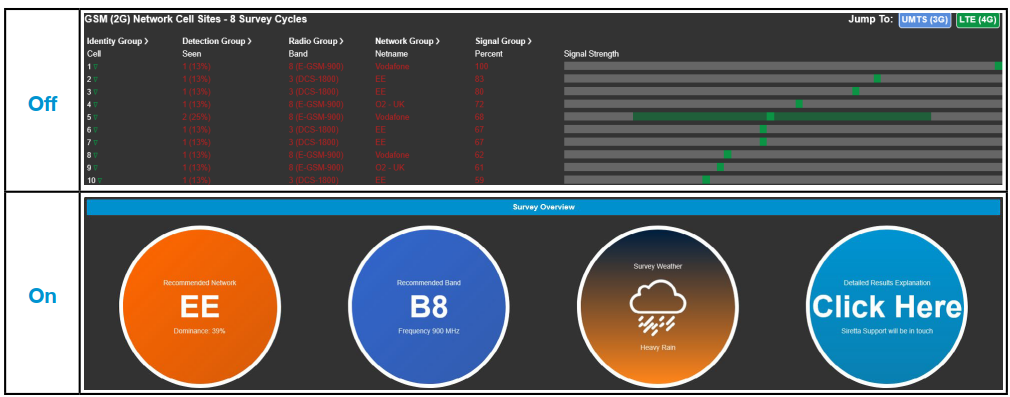
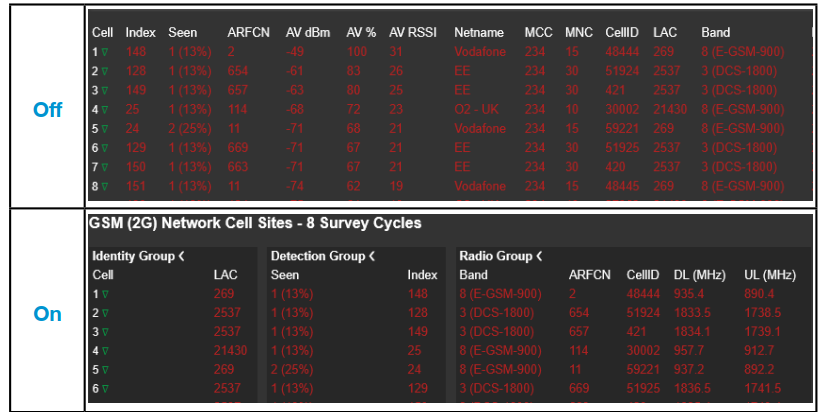
The settings tab lets you customise how survey data is both displayed and interacted with in the CloudSURVEY portal. You can toggle features on or off.
¶ Site Defaults
| Setting | Description |
|---|---|
| Detailed Survey Analysis | View survey results in a categorised and graphical form |
| Default Survey Analysis Tab | When Detailed Survey Analysis is enabled, set the default tab that loads when opening a survey |
| Display Grouped Results | Group survey results in collapsible sections |
| Survey Units Default | Set the default unit of measurement (Metric / Imperial) |
| Results Display Default | Set the number of individual survey results displayed on the page in the survey list |
| Time Zone Default | Set the time zone used in the portal |
¶ Detailed Survey Analysis
¶ Grouped Survey Results Columns
¶ SENTRY Defaults
| Setting | Description |
|---|---|
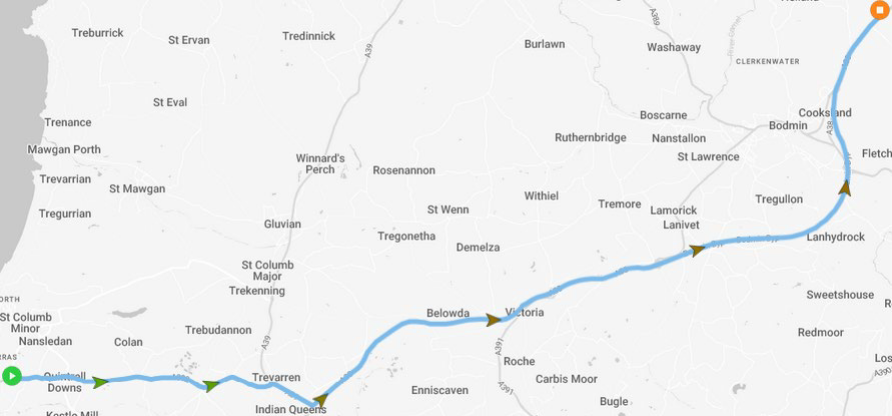
| Speed-based Waypoint Colouring | If enabled, Waypoints are color-coded based on travel speed, using a green-red gradient. |
| Waypoint Marker Auto Zoom In | If enabled, CloudSURVEY will automatically zoom in on selected markers. |
| Waypoint Marker Auto Zoom Out | If enabled, CloudSURVEY will automatically zoom out from selected markers. |
| Location Boundary Default | If enabled, the location boundary will be shown by default when opening a survey. |
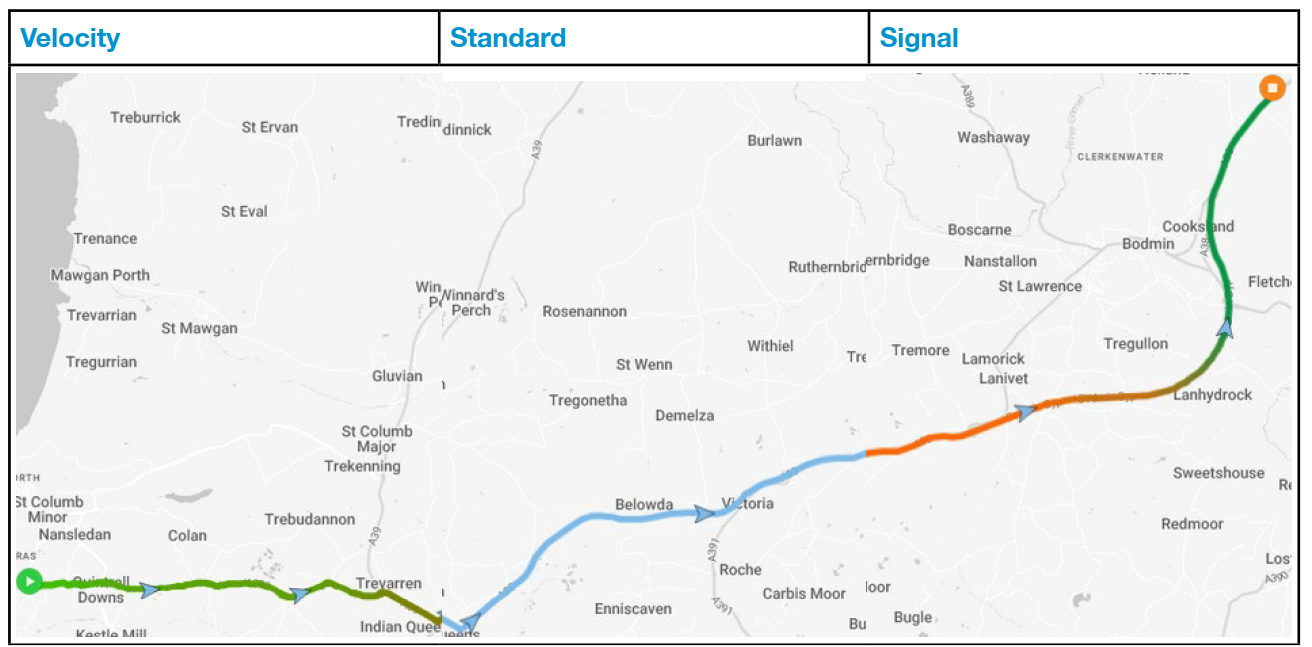
| Route Trace Default | Choose the colour of the survey route according to the selected metric (Standard / Signal strength / Velocity). |
| Email Summary Default | Send a summary email whenever a survey is completed. |
¶ Speed-based Waypoint Colouring
¶ Location Boundary Default
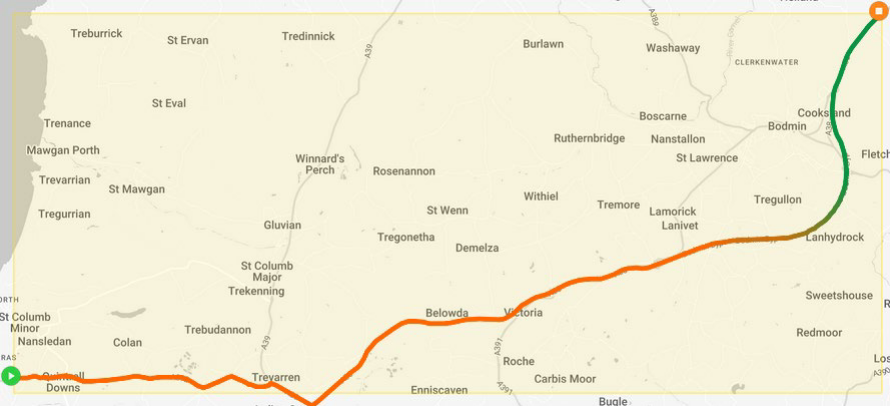
¶ Route Trace Default Colouring
¶ Map Defaults
| Setting | Description |
|---|---|
| Map Position Default | Show or hide the initial position marker on survey maps by default. |
| Map Clustering Default | Choose whether or not to group nearby cell tower markers by default. |
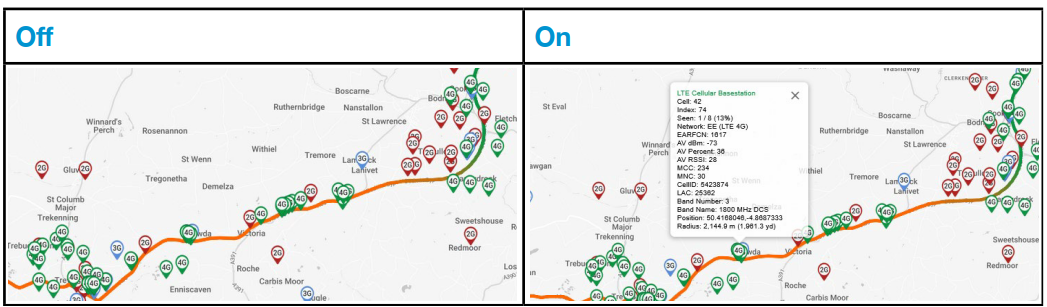
| Map Information Default | Show or hide cellular marker information by default. |
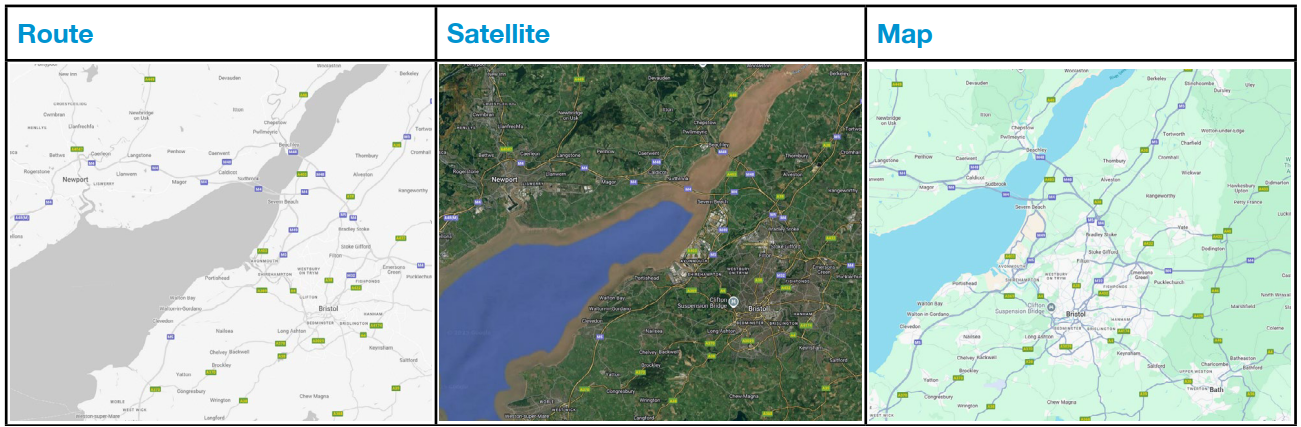
| Survey Map Style Default | Choose the default map style when opening a survey. |
¶ Map Position Default

¶ Map Clustering
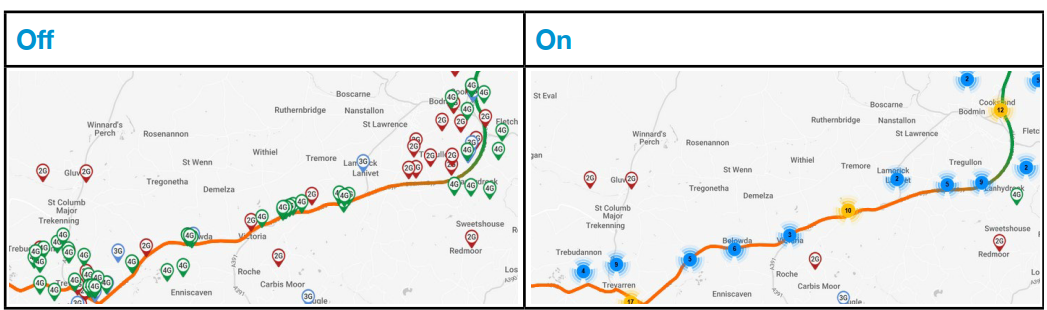
¶ Map Information
¶ Survey Map Style
¶ Technology Defaults
| Setting | Description |
|---|---|
| GSM (2G) Marker | If enabled, map markers representing GSM (2G) cells are displayed. |
| UMTS (3G) Marker | If enabled, map markers representing UMTS (3G) cells are displayed. |
| LTE (4G) Marker | If enabled, map markers representing LTE (4G) cells are displayed. |
| LTE-M Marker | If enabled, map markers representing LTE-M cells are displayed. |
| NB-IoT Marker | If enabled, map markers representing NB-IoT cells are displayed. |
| 5G NR (SA) Marker | If enabled, map markers representing 5G NR Standalone (SA) cells are displayed. |
| 5G NR (NSA) Marker | If enabled, map markers representing 5G NR Non-Standalone (NSA) cells are displayed. |
| NSA+ (LTE) Marker | If enabled, map markers representing LTE anchor cells used by 5G NSA connections are displayed. |
| NTN (NB-IoT) Marker | If enabled, map markers representing NB-IoT Non-Terrestrial Network (NTN) cells are displayed. |
| GSM (2G) Accuracy | If enabled, the recorded GNSS accuracy for GSM (2G) survey points is displayed. |
| UMTS (3G) Accuracy | If enabled, the recorded GNSS accuracy for UMTS (3G) survey points is displayed. |
| LTE (4G) Accuracy | If enabled, the recorded GNSS accuracy for LTE (4G) survey points is displayed. |
| LTE-M Accuracy | If enabled, the recorded GNSS accuracy for LTE-M survey points is displayed. |
| NB-IoT Accuracy | If enabled, the recorded GNSS accuracy for NB-IoT survey points is displayed. |
| 5G NR (SA) Accuracy | If enabled, the recorded GNSS accuracy for 5G NR Standalone (SA) survey points is displayed. |
| 5G NR (NSA) Accuracy | If enabled, the recorded GNSS accuracy for 5G NR Non-Standalone (NSA) survey points is displayed. |
| NSA+ (LTE) Accuracy | If enabled, the recorded GNSS accuracy for LTE anchor measurements used by 5G NSA connections is displayed. |
| NTN (NB-IoT) Accuracy | If enabled, the recorded GNSS accuracy for NTN NB-IoT survey points is displayed. |
| GSM (2G) Signal | If enabled, GSM (2G) survey points are coloured or overlaid using the recorded signal strength. |
| UMTS (3G) Signal | If enabled, UMTS (3G) survey points are coloured or overlaid using the recorded signal strength. |
| LTE (4G) Signal | If enabled, LTE (4G) survey points are coloured or overlaid using the recorded signal strength. |
| LTE-M Signal | If enabled, LTE-M survey points are coloured or overlaid using the recorded signal strength. |
| NB-IoT Signal | If enabled, NB-IoT survey points are coloured or overlaid using the recorded signal strength. |
| 5G NR (SA) Signal | If enabled, 5G NR Standalone (SA) survey points are coloured or overlaid using the recorded signal strength. |
| 5G NR (NSA) Signal | If enabled, 5G NR Non-Standalone (NSA) survey points are coloured or overlaid using the recorded signal strength. |
| NSA+ (LTE) Signal | If enabled, LTE anchor measurements used by 5G NSA connections are coloured or overlaid using the recorded signal strength. |
| NTN (NB-IoT) Signal | If enabled, NTN NB-IoT survey points are coloured or overlaid using the recorded signal strength. |
| GSM (2G) Dropout | If enabled, locations where the GSM (2G) connection was lost during the survey are displayed. |
| UMTS (3G) Dropout | If enabled, locations where the UMTS (3G) connection was lost during the survey are displayed. |
| LTE (4G) Dropout | If enabled, locations where the LTE (4G) connection was lost during the survey are displayed. |
| LTE-M Dropout | If enabled, locations where the LTE-M connection was lost during the survey are displayed. |
| NB-IoT Dropout | If enabled, locations where the NB-IoT connection was lost during the survey are displayed. |
| 5G NR (SA) Dropout | If enabled, locations where the 5G NR Standalone (SA) connection was lost during the survey are displayed. |
| 5G NR (NSA) Dropout | If enabled, locations where the 5G NR Non-Standalone (NSA) connection was lost during the survey are displayed. |
| NSA+ (LTE) Dropout | If enabled, locations where the LTE anchor connection used by 5G NSA service was lost during the survey are displayed. |
| NTN (NB-IoT) Dropout | If enabled, locations where the NTN NB-IoT connection was lost during the survey are displayed. |
¶ Subscription
CloudSURVEY is free to use with core features available to all users. For those who require enhanced capabilities, we offer an optional subscription-based service with tiered plans to suit different levels of usage. Our subscription plans: Premium and Premium Plus, provide access to advanced features and a monthly supply of tokens. These plans are ideal for users who need more in-depth insights.
On subscription, premium tokens are automatically added to the account and will subsequently be added every month on the date of the initial purchase. For example, if you subscribed on the 13th of January, the tokens will refresh on the 13th of February and continue on the 13th of each following month. Any unused tokens will not roll over at the end of the month; instead, a new allocation will be made to the account.
Users may still purchase additional tokens separately while using the subscription service. Non-premium tokens purchased this way behave as normal and will remain in the account beyond the end of the month.
¶ Personal Information
The personal information stored in CloudSURVEY for the account owner is shown in the account area. For new accounts, some fields may appear with a red background, indicating incomplete information. Any fields that are already populated were collected during the portal account registration process.
Complete the Personal Information section if you wish to enable token purchases.